Google Analytics · Search Features Guide
Beyond Clicking Through Menus: The Google Analytics Search Bar
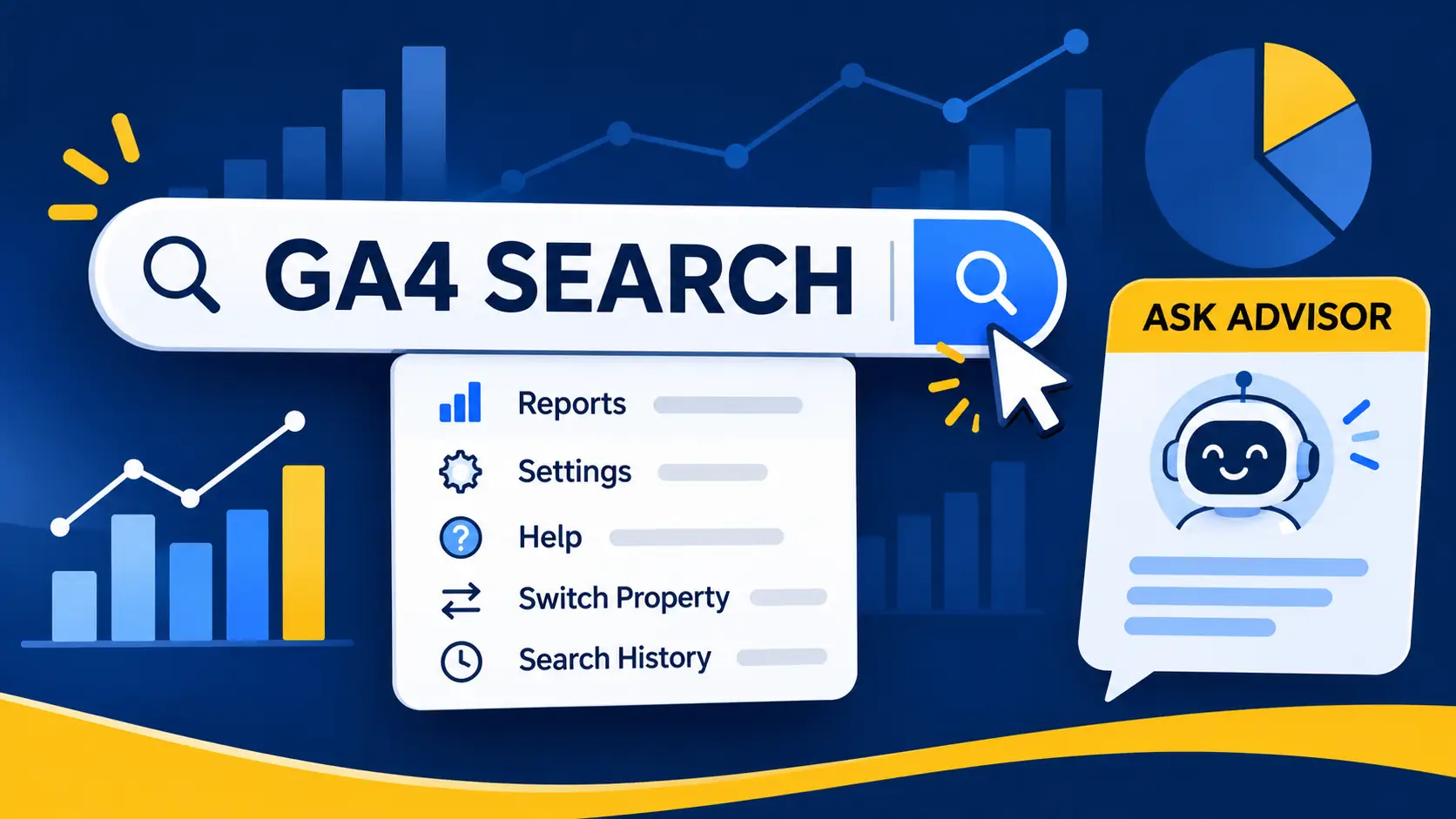
The GA4 search bar is more than a shortcut to another report. It can answer quick questions, take you to settings, help you switch properties and point you towards relevant guidance. Here is how to use it, and how it differs from Ask Advisor.
A practical guide to GA4 search features · 7–9 min read
Quick note
GA4 interface labels and availability can change. Check Google's current Help documentation if something looks different in your property.
If you have used Google Analytics 4 for a while, you have probably noticed the search field at the top of the interface. It is easy to treat it as a simple way to find a report, especially when you are still getting used to GA4 navigation. However, the Google Analytics search bar can do several different jobs, from returning quick answers to helping you locate account and property settings.
It is also worth understanding that the search bar and Ask Advisor are not the same feature. They can both help you find information, but they are designed for different types of tasks. Knowing which one to use can save time when you are analysing website performance or managing a GA4 property.
The short version
Use GA4 search when you know what you need to find or want a quick answer. Use Ask Advisor when you want to explore a question through a more conversational, follow-up-based experience.
Get instant answers without opening a report
One of the most useful features of the GA4 search bar is its ability to respond to certain questions directly. Instead of navigating through several reports, you can enter a natural-language query and, when the question is supported, Google Analytics may show an instant answer.
For more useful results, make the question specific. Include the metric, dimension and time period where relevant. For example, you could ask for the number of users or sessions over a clearly stated date range. A vague query may return less useful suggestions because the system has less context to work with.
Think of this as a quick retrieval tool rather than a full analysis conversation. It is useful when you want a straightforward answer, but a more complicated question about why a metric changed may require further investigation.
Find reports, insights and Admin settings
The search field can help you locate parts of the GA4 interface without remembering exactly where Google has placed them. Enter the name of a report, an insight or a setting, and review the available suggestions.
- 01 · ReportsReportsSearch for reports by name or topic rather than browsing through the navigation menu.
- 02 · AdminAdministrationFind relevant account or property configuration areas when you need to manage a setting.
- 03 · InsightsInsightsLook for relevant insights and information available within the current Analytics property.
- 04 · HelpHelp contentSearch for instructions and explanations when you are unsure how to complete a task.
This is particularly helpful when you use GA4 occasionally or work across several properties. You do not need to memorise every menu location. Search for the task or destination, then choose the most relevant result.
Switch properties and find stream details
The Google Analytics search feature can also help you locate accounts, properties and data streams. Searching for the name or ID of the property you are currently viewing can take you to its configuration area. Searching for another property name or ID can help you find and open that property.
Google Analytics can also recognise certain identifiers. For example, searching for a web stream's Measurement ID or an app stream ID can take you to the relevant data stream details. This can be useful when checking a tracking setup or confirming which stream an identifier belongs to.
When searching for other properties or stream identifiers, Analytics may show a limited set of matching properties rather than an unlimited directory. If you manage many properties, use an accurate property name or ID to narrow the results.
Practical tip
Keep a record of the correct property name and Measurement ID for each website or app you manage. Searching by an exact identifier is often quicker than trying to recognise a property from a long list.
Search Google Analytics Help from the interface
You can use the search bar to find relevant Google Analytics Help content without leaving the interface to start a separate search. This is useful when you need instructions for a particular task, such as setting up a data stream, editing a configuration or understanding a report.
Try using action-oriented wording. Searches that begin with terms such as add, configure, create, edit or set up can make your intention clearer. For example, searching for how to configure cross-domain measurement is more specific than entering only the word “domains”.
Help search is especially useful for finding procedural guidance. For questions that require interpretation of your own performance data, a report or Ask Advisor may be a better starting point.
Use autocomplete and keyboard shortcuts
You do not always need to type a complete query. As you enter text, Google Analytics can display suggested searches and destinations that match what you have typed. These suggestions can include relevant reports, settings, help topics and other results.
- Start typing a metric, report name, setting or task.
- Review the suggestions displayed beneath the search field.
- Use the keyboard arrow keys to move through available suggestions.
- Press Enter to select the highlighted result.
Autocomplete is useful when you are not certain of the exact name of a report or setting. It can also reduce typing when you regularly look for the same destinations.
Review and manage your search history
Google Analytics can retain a history of searches, making it easier to return to queries or destinations you have used recently. This is separate from the search tracking you might configure on your own website.
To find the Analytics Intelligence search history settings, go to Admin > Property settings > Analytics Intelligence Search History. Users with the Editor role can delete individual entries or clear the available search history.
Do not confuse the two
GA4's interface search history records searches made inside the Analytics product. Website Site Search measurement tracks what visitors search for on your website, commonly using the view_search_results event and a search_term parameter when configured and collected.
Google Analytics search bar vs Ask Advisor: What is the difference?
The search bar and Ask Advisor can appear close together in the GA4 interface, and both can help you get to information. However, their main purposes are different. Search is primarily designed to retrieve information and navigate the product. Ask Advisor provides a conversational way to investigate questions about your Analytics data and the platform.
| Feature | GA4 search bar | Ask Advisor |
|---|---|---|
| Main purpose | Find answers, reports, settings and Help content. | Explore questions through a conversational assistant. |
| How you interact | Enter a search term or question and select a suggested result. | Ask a question, review the response and ask follow-up questions. |
| Best suited to | Quick lookups, navigation and locating instructions. | Investigating performance questions and exploring possible explanations. |
| Data exploration | Can return supported instant answers and relevant destinations. | Can provide data-focused responses, insights and visualisations. |
| Conversation | Not designed as an extended back-and-forth conversation. | Supports follow-up questions within the conversation. |
When should you use each one?
Use the search bar when you want to get somewhere quickly: open a report, find a setting, look up a Measurement ID or locate a Help article. It is also a good choice when you have a simple question that GA4 can answer directly.
Use Ask Advisor when you want to investigate a more involved question. For example, you might want to understand a change in traffic, explore a pattern in your reports or ask a follow-up based on an earlier response. Ask Advisor is designed to make this process more conversational and can provide visualisations or links to relevant reports.
Ask Advisor's responses about Analytics data are based on the specific GA4 property you are using. It does not automatically combine data from all the separate properties in your account. As with other AI-assisted features, its answers can be incorrect or incomplete, so check important findings against the underlying reports.
How to open Ask Advisor in Google Analytics
When the feature is available for your property, you can usually open Ask Advisor using its icon near the top-right area of the Google Analytics interface. It may also be accessible through the GA4 search experience or from supported insight and visualisation cards. Our full guide to Ask Advisor covers it in more detail.
- Open the GA4 property you want to explore.
- Look for the Ask Advisor icon in the top-right area while viewing a report.
- Select it to open the conversational panel.
- Enter a question about your Analytics data or how to use the platform.
- Review the response and ask a follow-up question if you need more detail.
Availability can depend on Google's rollout and property settings. Google's Help documentation currently describes availability for properties with English selected, with broader language availability planned. The interface and supported capabilities may change as the feature develops.
A quick checklist for using GA4 search effectively
Use this short checklist the next time you need to find something in Google Analytics.
0 of 6 checked
Frequently Asked Questions
You can search for supported instant answers, reports, insights, account and property settings, data stream details and Google Analytics Help content. The results depend on the wording of your query and the property you are using.
Yes. It can return instant answers for supported natural-language questions. Including the metric, dimension and relevant timeframe can make a query more specific. It is not intended to replace every report or provide a full conversational analysis.
No. Search is mainly for quick answers, navigation and finding help. Ask Advisor is a conversational assistant that can help investigate data-related questions and support follow-up questions.
Go to Admin, then Property settings, and look for Analytics Intelligence Search History. Editors can delete individual search-history entries or clear the history.
Conclusion
The Google Analytics search bar is a practical tool for finding information without working through every menu. It can help you get supported instant answers, locate reports and settings, identify properties and data streams, and find relevant Help content. Learning to use autocomplete and specific search wording can make everyday GA4 tasks quicker.
Ask Advisor has a different role. It is better suited to conversational questions and exploring your Analytics data through follow-up prompts. Rather than treating the two features as alternatives, use them together: search for quick retrieval and navigation, and turn to Ask Advisor when you want to investigate a question in more depth.
Further Reading
This guide is intended as a practical overview. Google Analytics features, interface labels and availability can change, so consult Google's current Help documentation for the latest details.
Tagged in
Categories
Written by
Keshera Wijeyesekera
I write Interesting to Read, a blog on all kinds of topics worth your time. Outside of the blog, I work in SEO and digital marketing.