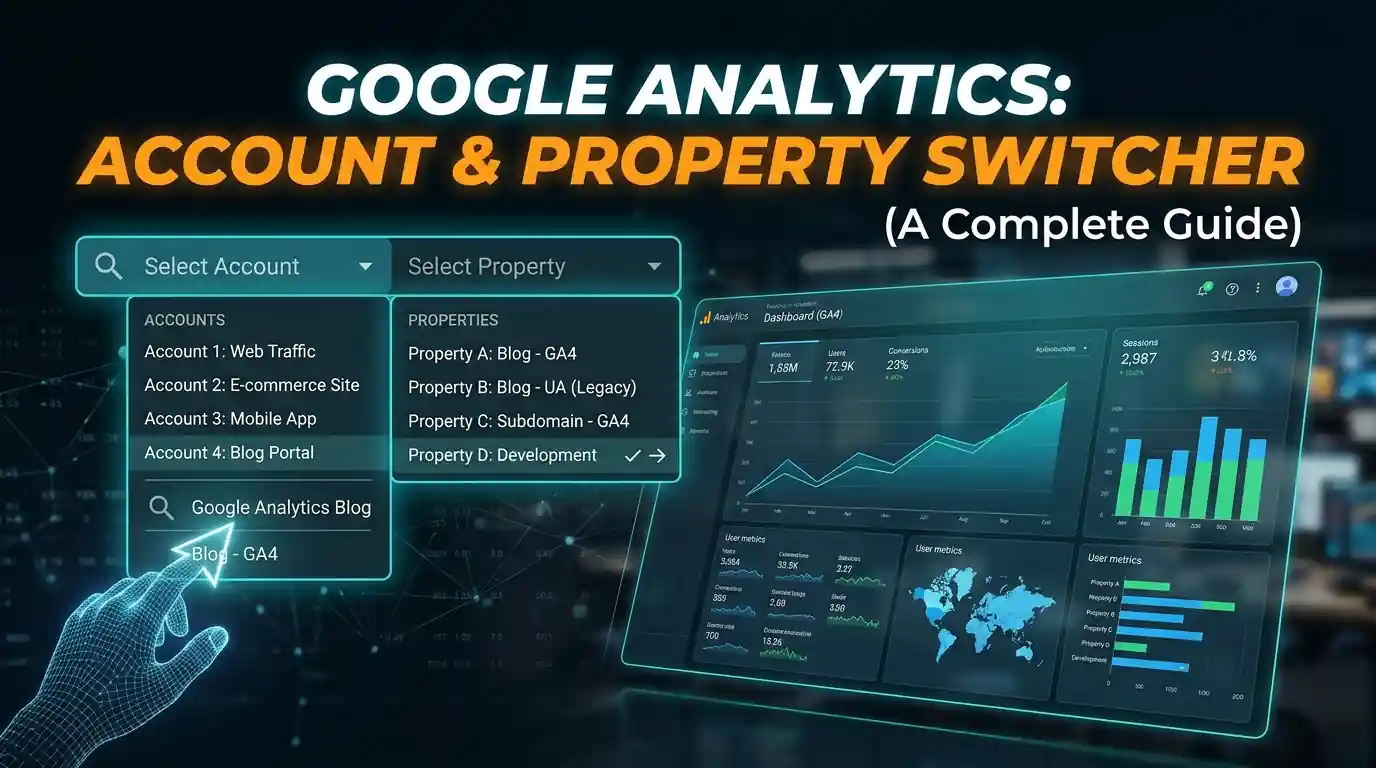
Google Analytics · A Complete Guide
Google Analytics Account & Property Switcher
Learn how to move between Analytics accounts, find GA4 properties, understand linked Firebase app projects and keep multiple workspaces organised.
Beginner-friendly guide · Google Analytics 4 · 8–10 min read
Quick tip
Star the properties you use most, then use Favorites to move between them faster.
Managing several websites, mobile apps or client projects can make it difficult to keep track of your analytics data. If you regularly work with Google Analytics 4 (GA4), the Account & Property Switcher is one of the most useful features for navigating between different workspaces.
Located in the upper-left area of the Google Analytics interface, this menu allows you to view the Analytics accounts and properties you have permission to access. It also provides access to linked Firebase app projects and, where applicable, Google Marketing Platform organisations.
Although the switcher looks like a simple dropdown menu, understanding its layout can save time when managing multiple properties. This guide explains its main components, how to use them and some practical ways to organise your Analytics workspaces.
At a glance
An Analytics account can contain multiple properties. A GA4 property can collect data from one or more web and app data streams. The switcher helps you locate the account and property you need.
Understanding the Account & Property Switcher
The Account & Property Switcher is designed to help you move between the different Analytics accounts and properties associated with your Google login.
To open it, sign in to Google Analytics and select the property name displayed in the upper-left area of the interface. The switcher opens with two main columns:
- Analytics Accounts: Displays the Analytics accounts you have permission to access.
- Properties & Apps: Displays the properties and linked Firebase app projects associated with the selected account.
The account you select determines which properties and apps appear in the second column. This structure follows the standard Google Analytics hierarchy, where an account can contain multiple properties.
If you manage analytics for several websites or clients, this arrangement allows you to move between the relevant workspaces without signing out or changing Google accounts.
Controls
The Top Navigation and Search Options
The upper section of the switcher helps you find the account or property you want to access. Depending on the version of the interface and the options available to your account, you may see filters, search functionality and organisation-related controls.
All
The All option displays the accounts and properties available to your Google account. It is useful when you need to browse your complete list of Analytics workspaces rather than looking for a previously selected property.
Favorites
The Favorites option helps you access frequently used properties more quickly. You can mark a property as a favourite using the star icon displayed alongside it. This is particularly useful if you manage several websites but regularly monitor only a few of them.
Instead of searching through the complete directory each time, you can use your favourites as a convenient shortlist.
Recents
The Recents option provides access to properties you have opened recently. It can save time when you frequently move between a small group of websites, apps or client projects.
Search Bar
The search function helps you locate a specific Analytics account, property or app project without manually browsing the list. You can search using the relevant name or identifier where supported.
This is especially helpful when several properties have similar names. For example, if you manage separate Analytics properties for a live website and a development environment, searching for the correct property can reduce the risk of opening the wrong workspace.
Organisation Selector
If your Analytics account is associated with a Google Marketing Platform organisation, you may have an option to filter the accounts displayed by organisation.
Organisations provide a way for businesses to manage access to Google Marketing Platform products, including Google Analytics and Google Tag Manager. If you work with multiple organisations, selecting the appropriate one can make it easier to locate the relevant accounts.
Left Column: Analytics Accounts
The left-hand column displays the Analytics accounts available to you. An Analytics account acts as a container for one or more properties.
For example, a digital marketing agency might use separate accounts for different clients, while a business could organise its websites and applications under a single account.
Each account is generally identified by its name and account ID.
Account Name and ID
The account name helps you recognise the business, organisation or project associated with the account. The account ID is its unique numerical identifier.
Knowing the difference between an account ID and a property ID is important when configuring analytics integrations or troubleshooting access issues.
Selecting an Account
When you select an account in the left column, the Properties & Apps column updates to display the properties and linked app projects associated with it.
This allows you to narrow down your selection before opening the required property.
Accounts Marked for Deletion
If an account or property has been moved to the Trash, it is scheduled for permanent deletion. Google Analytics keeps deleted accounts and properties in the Trash for 35 days, during which an eligible user can restore them.
However, the Trash is managed separately through the Admin section. Do not rely solely on the switcher to determine whether an account is scheduled for deletion. If you need to check its status or restore it, navigate to Admin > Trash.
An account or property that remains in the Trash beyond the 35-day period is permanently deleted, including its associated historical Analytics data.
Right Column: Properties & Apps
After selecting an Analytics account, the right-hand column displays the properties and app projects associated with it.
Understanding this section is particularly important because GA4 can measure activity across websites and mobile applications.
Google Analytics Properties
A GA4 property is the main workspace where data from a website, mobile application or combination of platforms is collected and reported.
For example, an online retailer might use one GA4 property to measure activity across its website and mobile application. The property can contain different data streams for its web, iOS and Android platforms.
A data stream represents the source from which data is collected. GA4 supports web, iOS app and Android app data streams.
Linked Firebase App Projects
The switcher can also display Firebase app projects linked to Google Analytics.
Firebase is Google's platform for developing and managing mobile applications. When a Firebase project is connected to a GA4 property, app analytics data can be collected and accessed through Google Analytics.
This integration allows businesses to analyse mobile app activity, including user engagement, screen views and other events.
It is important to understand that a Firebase project and a GA4 property are not interchangeable terms. A Firebase project can be linked to a GA4 property, allowing app data to be measured within Analytics.
Property Name and ID
Each GA4 property has a name and a unique numerical Property ID. The name makes it easier to identify the website or project, while the ID provides a specific reference to that property.
You may need the Property ID when configuring certain integrations, connecting reporting tools or working with the Google Analytics Data API.
For example, Looker Studio can use a GA4 property as a data source. WordPress users can also access their Analytics property through tools such as Google Site Kit, which simplifies the connection process.
The Favorite Star Icon
The star icon allows you to mark a property as a favourite. Once selected, the property becomes easier to find through the Favorites option in the switcher.
If you regularly monitor several websites, starring your most frequently used properties can make your daily reporting workflow more efficient.
Quick Reference: Account & Property Switcher Components
The following table summarises the main elements and their functions.
| Interface element | Location | Main function |
|---|---|---|
| All | Top navigation | Displays the available Analytics accounts and properties. |
| Favorites | Top navigation | Provides quick access to starred properties. |
| Recents | Top navigation | Helps you return to recently accessed properties. |
| Search | Upper section | Locates accounts, properties or app projects. |
| Organisation Selector | Upper section, where available | Filters accounts by Google Marketing Platform organisation. |
| Analytics Accounts | Left column | Displays available accounts and their identifiers. |
| Properties & Apps | Right column | Displays properties and linked Firebase app projects. |
| Favorite Star | Beside a property | Adds a property to the Favorites list. |
The exact layout and available controls can vary depending on your Google Analytics interface and account access.
Best Practices for Managing Multiple Analytics Properties
The Account & Property Switcher becomes increasingly useful as you gain access to more websites, applications and client accounts. A few simple habits can help you manage these workspaces more efficiently.
Star Your Most Frequently Used Properties
If you regularly monitor a small number of websites, add those properties to your Favorites list. This reduces the time spent browsing the complete account directory and makes frequently used workspaces easier to access.
Search for the Correct Property
Websites can have similar names, especially when you manage development, staging and production environments. Use the search function and verify the Property ID before opening a workspace or configuring an integration.
This helps reduce the risk of working with the wrong Analytics dataset.
Keep Account and Property Names Clear
Use meaningful names that identify the website, business or project associated with each property. If you manage several client websites, consistent naming conventions can make the switcher easier to navigate.
Example naming convention: Names such as Client A - Main Website and Client A - Mobile App are more informative than generic labels such as Website 1 or Property 2.
Review Accounts and Properties Marked for Deletion
If you notice that an account or property is scheduled for deletion, check its status in the Trash section under Admin. If it was moved there accidentally, an eligible user can restore it within the 35-day retention period.
Do not wait until the end of the retention period to investigate, as permanently deleted Analytics data cannot be recovered through the standard restoration process.
Check Your Access Permissions
You may not see every account or property associated with a business if your Google account does not have the required permissions. If a workspace is missing from the switcher, confirm that you are signed in with the correct Google account and ask an Analytics administrator to review your access.
Frequently Asked Questions
It is a navigation menu in Google Analytics that allows you to move between the Analytics accounts, properties and linked Firebase app projects you have permission to access.
An Analytics account is a container that can hold multiple properties. A property is the workspace where website and app data is collected and analysed. One account can therefore contain several properties.
Yes. A GA4 property can contain multiple data streams, including web, iOS and Android app streams. This allows businesses to measure activity across different platforms within a single property.
Google Analytics retains accounts and properties in the Trash for 35 days before permanently deleting them. During this period, an eligible user can restore them. After permanent deletion, the associated historical data cannot be recovered through the standard restoration process.
You may be signed in with the wrong Google account, or you may not have permission to access the property. Check which Google account you are using and ask the account administrator to review your access if necessary.
The Account & Property Switcher is primarily used to navigate Google Analytics accounts, properties and linked app projects. Google Tag Manager is a separate product with its own interface. If you use both platforms, you can access them through their respective interfaces and Google Marketing Platform organisation, where applicable.
Conclusion
The Google Analytics Account & Property Switcher is a useful navigation feature for anyone managing multiple websites, mobile applications or client projects. By understanding the difference between accounts, properties and linked Firebase projects, you can locate the correct workspace and move between datasets more efficiently.
Using Favorites, search and clear naming conventions can also simplify your daily workflow. Whether you manage one website or several client accounts, becoming familiar with this menu makes working with Google Analytics more organised and straightforward.
Tagged in
Categories
Written by
Keshera Wijeyesekera
I write Interesting to Read, a blog on all kinds of topics worth your time. Outside of the blog, I work in SEO and digital marketing.