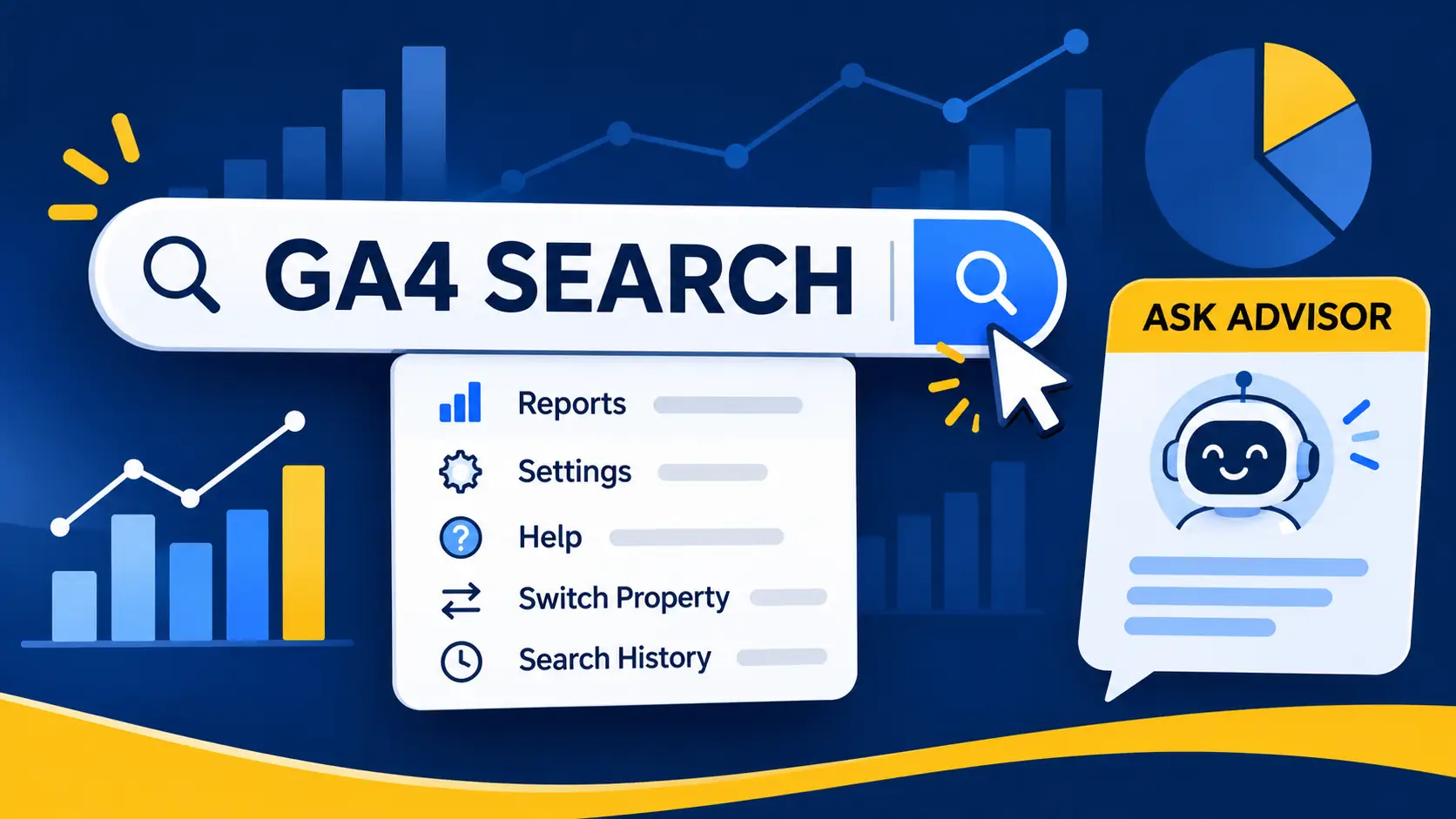
Google Analytics Search Bar: Features, Tips & Ask Advisor

Google Analytics · Search Features Guide

Beyond Clicking Through Menus: The Google Analytics Search Bar

The GA4 search bar is more than a shortcut to another report. It can answer quick questions, take you to settings, help you switch properties and point you towards relevant guidance. Here is how to use it, and how it differs from Ask Advisor.

A practical guide to GA4 search features  ·  7–9 min read

Quick note

GA4 interface labels and availability can change. Check Google's current Help documentation if something looks different in your property.

If you have used Google Analytics 4 for a while, you have probably noticed the search field at the top of the interface. It is easy to treat it as a simple way to find a report, especially when you are still getting used to GA4 navigation. However, the Google Analytics search bar can do several different jobs, from returning quick answers to helping you locate account and property settings.

It is also worth understanding that the search bar and Ask Advisor are not the same feature. They can both help you find information, but they are designed for different types of tasks. Knowing which one to use can save time when you are analysing website performance or managing a GA4 property.

The short version

Use GA4 search when you know what you need to find or want a quick answer. Use Ask Advisor when you want to explore a question through a more conversational, follow-up-based experience.

Get instant answers without opening a report

One of the most useful features of the GA4 search bar is its ability to respond to certain questions directly. Instead of navigating through several reports, you can enter a natural-language query and, when the question is supported, Google Analytics may show an instant answer.

For more useful results, make the question specific. Include the metric, dimension and time period where relevant. For example, you could ask for the number of users or sessions over a clearly stated date range. A vague query may return less useful suggestions because the system has less context to work with.

Instant answer · Users
Reports matching your search
Help results related to users
A supported natural-language question can return an instant answer without opening a report. Adding a metric and a date range makes the query more specific.
Data stream details · Web stream
Admin · Data streams
Help results related to the Measurement ID
Searching for a web stream’s Measurement ID or an app stream ID can take you to the relevant data stream details.
Report · Realtime overview
Reports matching your search
Help results related to realtime reports
Searching by report name is the quickest way to get somewhere when you do not remember where a report lives.
Help · Set up cross-domain measurement
Admin · Data streams
Help results related to domains
Action words such as add, configure, create, edit and set up make your intention clearer when you are looking for Help instructions.
Admin · Property settings · Analytics Intelligence Search History
Settings matching your search
Help results related to search history
Users with the Editor role can delete individual entries or clear the history from this settings area.
Start typing, or pick one of the example searches below, to see the kind of suggestions the search bar can show.
This demo only covers the example searches. In GA4, the search bar would suggest matching reports, settings, properties and Help articles for your query.
Try an example search
Try it: pick an example search or type your own (users, measurement ID, realtime, cross-domain, history). A simplified illustration – the suggestions are examples, not live GA4 results.

Think of this as a quick retrieval tool rather than a full analysis conversation. It is useful when you want a straightforward answer, but a more complicated question about why a metric changed may require further investigation.

The search field can help you locate parts of the GA4 interface without remembering exactly where Google has placed them. Enter the name of a report, an insight or a setting, and review the available suggestions.

  • 01 · ReportsReportsSearch for reports by name or topic rather than browsing through the navigation menu.
  • 02 · AdminAdministrationFind relevant account or property configuration areas when you need to manage a setting.
  • 03 · InsightsInsightsLook for relevant insights and information available within the current Analytics property.
  • 04 · HelpHelp contentSearch for instructions and explanations when you are unsure how to complete a task.

This is particularly helpful when you use GA4 occasionally or work across several properties. You do not need to memorise every menu location. Search for the task or destination, then choose the most relevant result.

Switch properties and find stream details

The Google Analytics search feature can also help you locate accounts, properties and data streams. Searching for the name or ID of the property you are currently viewing can take you to its configuration area. Searching for another property name or ID can help you find and open that property.

Google Analytics can also recognise certain identifiers. For example, searching for a web stream's Measurement ID or an app stream ID can take you to the relevant data stream details. This can be useful when checking a tracking setup or confirming which stream an identifier belongs to.

When searching for other properties or stream identifiers, Analytics may show a limited set of matching properties rather than an unlimited directory. If you manage many properties, use an accurate property name or ID to narrow the results.

Practical tip

Keep a record of the correct property name and Measurement ID for each website or app you manage. Searching by an exact identifier is often quicker than trying to recognise a property from a long list.

Search Google Analytics Help from the interface

You can use the search bar to find relevant Google Analytics Help content without leaving the interface to start a separate search. This is useful when you need instructions for a particular task, such as setting up a data stream, editing a configuration or understanding a report.

Try using action-oriented wording. Searches that begin with terms such as add, configure, create, edit or set up can make your intention clearer. For example, searching for how to configure cross-domain measurement is more specific than entering only the word “domains”.

Help search is especially useful for finding procedural guidance. For questions that require interpretation of your own performance data, a report or Ask Advisor may be a better starting point.

Use autocomplete and keyboard shortcuts

You do not always need to type a complete query. As you enter text, Google Analytics can display suggested searches and destinations that match what you have typed. These suggestions can include relevant reports, settings, help topics and other results.

  • Start typing a metric, report name, setting or task.
  • Review the suggestions displayed beneath the search field.
  • Use the keyboard arrow keys to move through available suggestions.
  • Press Enter to select the highlighted result.

Autocomplete is useful when you are not certain of the exact name of a report or setting. It can also reduce typing when you regularly look for the same destinations.

Review and manage your search history

Google Analytics can retain a history of searches, making it easier to return to queries or destinations you have used recently. This is separate from the search tracking you might configure on your own website.

To find the Analytics Intelligence search history settings, go to Admin > Property settings > Analytics Intelligence Search History. Users with the Editor role can delete individual entries or clear the available search history.

Do not confuse the two

GA4's interface search history records searches made inside the Analytics product. Website Site Search measurement tracks what visitors search for on your website, commonly using the view_search_results event and a search_term parameter when configured and collected.

Google Analytics search bar vs Ask Advisor: What is the difference?

The search bar and Ask Advisor can appear close together in the GA4 interface, and both can help you get to information. However, their main purposes are different. Search is primarily designed to retrieve information and navigate the product. Ask Advisor provides a conversational way to investigate questions about your Analytics data and the platform.

FeatureGA4 search barAsk Advisor
Main purposeFind answers, reports, settings and Help content.Explore questions through a conversational assistant.
How you interactEnter a search term or question and select a suggested result.Ask a question, review the response and ask follow-up questions.
Best suited toQuick lookups, navigation and locating instructions.Investigating performance questions and exploring possible explanations.
Data explorationCan return supported instant answers and relevant destinations.Can provide data-focused responses, insights and visualisations.
ConversationNot designed as an extended back-and-forth conversation.Supports follow-up questions within the conversation.

When should you use each one?

Use the search bar when you want to get somewhere quickly: open a report, find a setting, look up a Measurement ID or locate a Help article. It is also a good choice when you have a simple question that GA4 can answer directly.

Use Ask Advisor when you want to investigate a more involved question. For example, you might want to understand a change in traffic, explore a pattern in your reports or ask a follow-up based on an earlier response. Ask Advisor is designed to make this process more conversational and can provide visualisations or links to relevant reports.

Ask Advisor's responses about Analytics data are based on the specific GA4 property you are using. It does not automatically combine data from all the separate properties in your account. As with other AI-assisted features, its answers can be incorrect or incomplete, so check important findings against the underlying reports.

How to open Ask Advisor in Google Analytics

When the feature is available for your property, you can usually open Ask Advisor using its icon near the top-right area of the Google Analytics interface. It may also be accessible through the GA4 search experience or from supported insight and visualisation cards. Our full guide to Ask Advisor covers it in more detail.

  1. Open the GA4 property you want to explore.
  2. Look for the Ask Advisor icon in the top-right area while viewing a report.
  3. Select it to open the conversational panel.
  4. Enter a question about your Analytics data or how to use the platform.
  5. Review the response and ask a follow-up question if you need more detail.

Availability can depend on Google's rollout and property settings. Google's Help documentation currently describes availability for properties with English selected, with broader language availability planned. The interface and supported capabilities may change as the feature develops.

A quick checklist for using GA4 search effectively

Use this short checklist the next time you need to find something in Google Analytics.

0 of 6 checked

Frequently Asked Questions

You can search for supported instant answers, reports, insights, account and property settings, data stream details and Google Analytics Help content. The results depend on the wording of your query and the property you are using.

Yes. It can return instant answers for supported natural-language questions. Including the metric, dimension and relevant timeframe can make a query more specific. It is not intended to replace every report or provide a full conversational analysis.

No. Search is mainly for quick answers, navigation and finding help. Ask Advisor is a conversational assistant that can help investigate data-related questions and support follow-up questions.

Go to Admin, then Property settings, and look for Analytics Intelligence Search History. Editors can delete individual search-history entries or clear the history.

No. Google states that data-based Ask Advisor responses use data from the specific Analytics property you are currently using, rather than combining data across separate properties.

The feature is subject to availability and rollout conditions. Google's Help documentation describes current availability for properties with English selected. The icon may also appear only in supported parts of the interface, such as report views.

Conclusion

The Google Analytics search bar is a practical tool for finding information without working through every menu. It can help you get supported instant answers, locate reports and settings, identify properties and data streams, and find relevant Help content. Learning to use autocomplete and specific search wording can make everyday GA4 tasks quicker.

Ask Advisor has a different role. It is better suited to conversational questions and exploring your Analytics data through follow-up prompts. Rather than treating the two features as alternatives, use them together: search for quick retrieval and navigation, and turn to Ask Advisor when you want to investigate a question in more depth.

Further Reading

This guide is intended as a practical overview. Google Analytics features, interface labels and availability can change, so consult Google's current Help documentation for the latest details.

Tagged in

Categories

Written by

Keshera Wijeyesekera

I write Interesting to Read, a blog on all kinds of topics worth your time. Outside of the blog, I work in SEO and digital marketing.
More about me  ·  LinkedIn  ·  Get in touch

Understanding Google Analytics 4 Hierarchy: Accounts, Properties, and Data Streams

Google Analytics · Beginner's Guide

Understanding Google Analytics 4 Hierarchy: Accounts, Properties, and Data Streams

Learn how GA4 organises accounts, properties and data streams, and how to choose a structure that makes sense for your websites, apps and business.

Beginner-friendly guide  ·  10–12 min read  ·  Updated November 2026

Remember the order

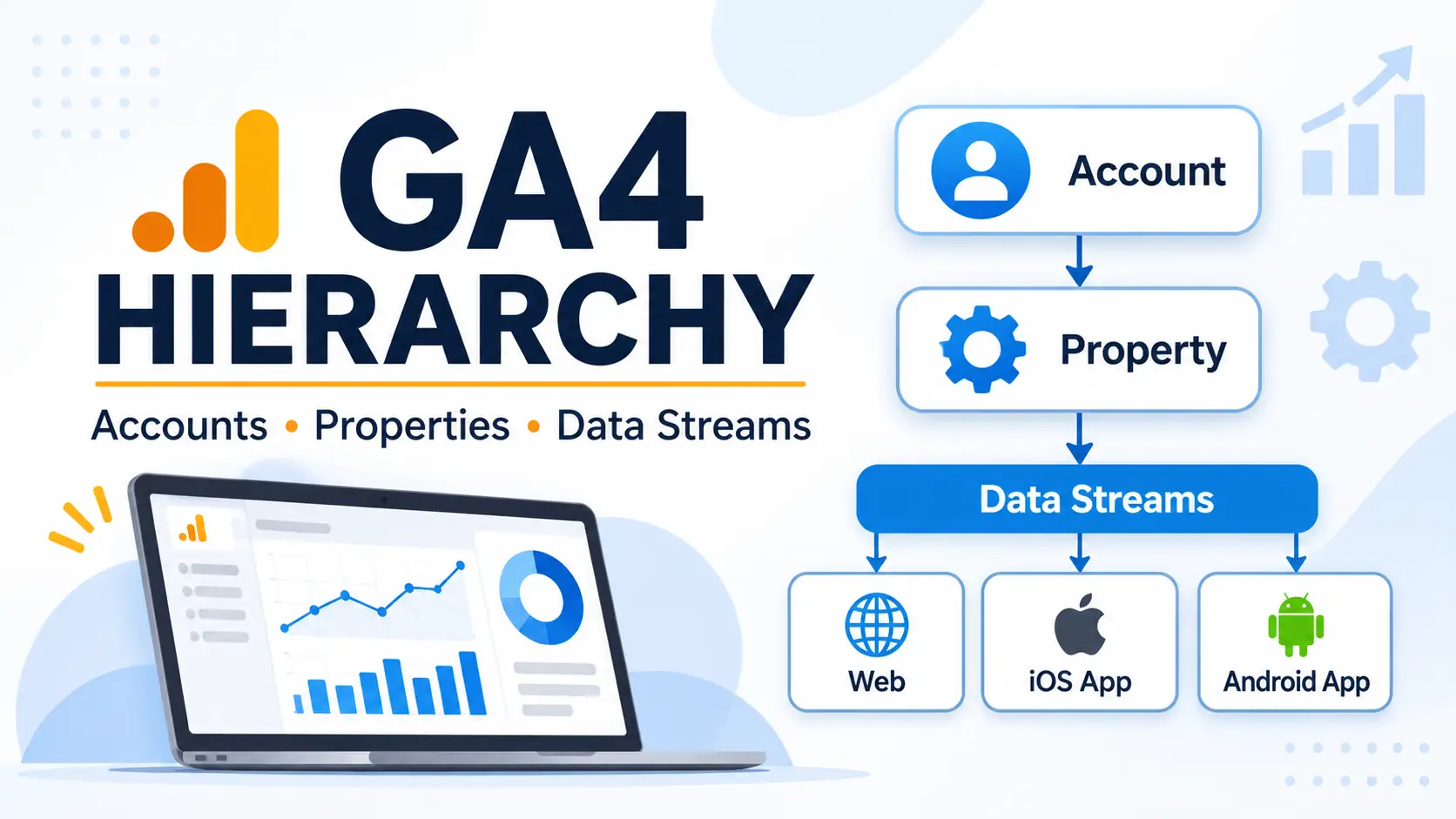
Account, then property, then data stream: organisation at the top, measurement in the middle and data collection at the bottom.

Google Analytics 4 (GA4) uses a structured system to organise website and app measurement. Understanding the Google Analytics 4 hierarchy is important when setting up analytics, managing multiple websites or tracking user activity across different platforms. The structure consists of three main levels: accounts, properties and data streams.

Each level has a specific purpose. Accounts provide the main organisational structure, properties contain measurement settings and reporting data, while data streams collect information from websites and mobile applications. Knowing how these elements work together helps you organise your analytics setup and maintain accurate reporting.

In this guide, we will explain the GA4 account structure, the difference between accounts and properties, how data streams work and how to choose the right setup for different business requirements.

At a glance

An account organises properties, a property brings measurement and reporting together, and a data stream sends activity from a website or app into a property.

What Is the Google Analytics 4 Hierarchy?

The Google Analytics 4 hierarchy is the organisational structure used to manage analytics accounts, properties and data streams. Each level builds on the previous one, allowing businesses to organise measurement according to their websites, applications and reporting requirements.

The standard structure follows this order:

  • Level 01Google Analytics AccountOrganises properties
  • Level 02GA4 PropertyManages measurement
  • Level 03Data StreamCollects platform data

An account is the highest level in the standard GA4 structure. It provides a way to manage access and organise properties. A property represents the website, app or related group of digital platforms being measured. Data streams connect individual websites and mobile applications to a property and send their activity data to Google Analytics.

Unlike Universal Analytics, GA4 does not use Views as an additional reporting level. Instead, it provides reporting and filtering features within the property.

Understanding this hierarchy helps prevent common setup problems, such as placing unrelated websites in the same property or creating unnecessary accounts.

Google Analytics Account

A Google Analytics account is the top-level organisational container in the standard GA4 hierarchy. It allows an organisation to manage its properties, users and access permissions from one central location.

For example, a business operating several websites may use one Google Analytics account to manage separate properties for each website. An agency managing analytics for multiple clients may use different accounts to keep client ownership and administration separate.

What Does a Google Analytics Account Do?

An account provides several important management functions:

  • Property management: Create and organise multiple GA4 properties under one account.
  • User access: Add users and assign permissions to manage analytics resources.
  • Administration: Manage account-level settings and access controls.
  • Organisation: Keep related properties under a common business or ownership structure.

Google Analytics supports up to 100 accounts per Google account and up to 2,000 properties within an individual Analytics account. These are platform limits rather than recommended targets for every organisation.

Google Analytics Account Permissions

Account-level permissions determine what users can access and manage within an account. Permissions assigned at this level are inherited by the properties under it.

GA4 provides several permission roles:

RoleMain permissions
AdministratorFull control over account or property settings, users and permissions.
EditorManage settings and configuration, excluding user permission management.
MarketerManage audiences, events, conversions and attribution-related settings.
AnalystCreate and manage explorations and access analysis features.
ViewerView reports and configuration settings without making changes.

The permissions available to a user depend on the role assigned to them. Account-level permissions are inherited by properties, so a user with broad account access may also have access to the properties within that account.

When Should You Create a Separate Google Analytics Account?

A separate account is useful when different organisations or legal entities need independent ownership and administration of their analytics data.

For example, a parent company may operate several businesses with separate management teams. If each business needs independent ownership and access management, separate accounts can be more appropriate than placing every property under one account.

However, a separate account is not necessary for every website. If several websites belong to the same organisation and share the same ownership and administration requirements, they can often be managed under one account using separate properties.

Google Analytics 4 Properties

A GA4 property is the level where measurement settings, reporting data and data streams are managed. It represents the website, mobile application or related group of digital platforms that an organisation wants to measure.

Properties sit beneath accounts in the Google Analytics 4 hierarchy. Each property has its own reporting environment, configuration settings and measurement arrangements.

For example, an organisation operating an online store and a separate corporate website may create two properties under one Google Analytics account. This allows the organisation to analyse each website independently.

What Does a GA4 Property Do?

A GA4 property brings together the measurement and reporting activities associated with a particular digital experience.

  • Data collection: Receive information from connected web and app data streams.
  • Reporting: Provide reports about users, traffic acquisition, engagement and conversions.
  • Measurement settings: Manage events, key events, audiences and other analytics configurations.
  • Data management: Control how collected data is retained and processed through available settings.
  • Access management: Assign property-level permissions to users who need access to specific analytics data.

A property can contain multiple data streams, allowing related websites and applications to contribute data to the same reporting environment.

How Many Data Streams Can a GA4 Property Have?

A standard GA4 property can contain up to 50 data streams. This includes a maximum of 30 app data streams.

These limits provide flexibility when measuring activity across different platforms. However, reaching the maximum is not necessarily a good reason to combine unrelated websites or applications within one property.

Google's general recommendation: A typical business with a website and mobile applications will often use one web data stream, one iOS app data stream and one Android app data stream per property. The technical maximum is not a recommended target.

The appropriate configuration depends on how the organisation wants to measure its users and analyse its digital platforms.

GA4 Subproperties and Roll-Up Properties

Google Analytics 360 offers additional property-management capabilities, including subproperties and roll-up properties. These features are not generally available in standard GA4 properties.

A subproperty receives data from a single source property. It can provide a separate reporting environment containing a filtered subset of the source property's data.

A roll-up property combines data from multiple source properties into one reporting environment. This can help larger organisations analyse information from different brands, regions or business units in one place.

Both features have specific eligibility requirements, including an appropriate Google Analytics 360 setup. They should not be confused with the standard account, property and data stream structure available to ordinary GA4 users.

Google Analytics 4 Data Streams

A data stream is the connection through which a website or mobile application sends information to a GA4 property. It is the data collection level within the Google Analytics 4 hierarchy.

When you create a property, you can add the relevant data streams depending on the platforms you want to measure.

GA4 supports three types of data streams:

Web Data Stream

A web data stream collects information from a website. It uses a Measurement ID and a Google tag or another supported tagging implementation to send website activity to the connected GA4 property.

Web data streams can collect information such as:

  • Page views
  • Page scrolling
  • Outbound link clicks
  • Site searches
  • File downloads
  • Video engagement

Enhanced Measurement can automatically collect several types of website interactions without requiring separate event configuration for each one. The available options can be managed within the web data stream settings.

iOS App Data Stream

An iOS app data stream collects information from an application running on Apple's iOS platform.

It is generally configured using the Firebase SDK, which helps connect the mobile application to Google Analytics. Once implemented, it can collect information about app activity, user engagement and relevant events.

Android App Data Stream

An Android app data stream measures activity within an Android application. Like the iOS configuration, it typically uses the Firebase SDK to send app measurement data to the relevant GA4 property.

Businesses with both iOS and Android applications can create separate app data streams within the same property when they want to analyse their website and mobile app activity together.

Data Streams vs Properties: What Is the Difference?

Although properties and data streams are closely connected, they serve different purposes.

FeatureGA4 PropertyData Stream
Main purposeOrganises measurement and reportingCollects data from a digital platform
Position in hierarchySecond levelThird level
Data collectionReceives data from connected streamsSends website or app activity to a property
ConfigurationManages property-level measurement and reporting settingsManages platform-specific collection settings
ExamplesOnline store propertyOnline store web stream

In simple terms, a property is the main measurement environment, while a data stream is the connection that sends information from a website or application into that environment.

Examples of a Google Analytics 4 Account Structure

The appropriate GA4 account structure depends on the organisation's ownership, websites, applications and reporting requirements. The following examples illustrate how accounts, properties and data streams can be arranged.

  • Example 01A business with one websiteA straightforward setup for a small business measuring one website.

    Account: Business Analytics
      └ Property: Main Website
        └ Stream: Website Web Stream
  • Example 02Website and mobile appsOne property can bring related web and app measurement together.

    Account: Business Analytics
      └ Property: Digital Platforms
        ├ Stream: Website
        ├ Stream: iOS App
        └ Stream: Android App
  • Example 03Parent company with multiple brandsSeparate properties can support independent brand reporting under shared ownership.

    Account: Parent Company
      ├ Property: Brand A Website
      ├ Property: Brand B Website
      └ Property: Brand C Website
  • Example 04Agency managing multiple clientsIndependent client ownership may call for separate accounts.

    Account: Client A Analytics
    Account: Client B Analytics
    Account: Client C Analytics
    The agency receives appropriate access.
  • Example 05Production and testing websiteA separate test property can keep development activity out of production reporting.

    Account: Business Analytics
      ├ Property: Production Website
      └ Property: Test Environment

These are illustrative structures rather than fixed rules. Choose the arrangement that reflects your ownership model and the way you need to report on user journeys.

Best Practices for Organising Your GA4 Account Structure

Setting up accounts, properties and data streams correctly can make analytics easier to manage as an organisation grows. Consider the following practices when planning your GA4 account structure.

Organise Accounts Around Ownership

Create accounts based on how the organisation owns and manages its analytics data. Separate accounts are useful when different businesses or legal entities require independent administration. Avoid creating unnecessary accounts simply because a business has multiple websites.

Use Separate Properties for Distinct Digital Experiences

A property should represent a logical user base or digital experience. If websites serve unrelated audiences or require independent reporting, separate properties may be more suitable.

However, related websites that form part of the same customer journey may benefit from a shared property and an appropriate measurement configuration.

Choose Data Streams Based on Your Platforms

Create the data streams needed to measure your website and applications. A typical business with a website and mobile applications may use one web stream, one iOS stream and one Android stream within the same property.

Avoid creating additional streams without a clear measurement requirement.

Configure Cross-Domain Measurement Where Necessary

If users move between related domains during the same journey, cross-domain measurement can help track those interactions more consistently.

For example, an online store may use one domain for browsing products and another domain for completing purchases. When both domains are part of the same user journey, cross-domain measurement can help preserve the journey across them.

This typically involves configuring the relevant domains within a single web data stream and ensuring the Google tag is implemented correctly.

Review User Permissions Regularly

Give users access according to their responsibilities. Account-level permissions are inherited by properties, so review these carefully before assigning broad access.

Where users only need to manage or analyse one property, property-level permissions can provide a more appropriate level of access.

Keep Testing Activity Separate From Production Data

Development and testing activity can affect analytics reports if it is collected alongside genuine website traffic. Consider using a separate test property or an appropriate testing arrangement to keep production reporting reliable.

GA4 structure quick-check

Tick off each point as you review your setup.

0 of 6 checked

Frequently Asked Questions

The standard Google Analytics 4 hierarchy consists of three levels: Account, Property and Data Stream. Accounts organise properties, properties manage measurement and reporting, and data streams collect information from websites and applications.

A Google Analytics account is the top-level container used to manage properties, users and access permissions. A GA4 property is the measurement environment where reporting data and configuration settings are managed.

Yes. A standard GA4 property can contain up to 50 data streams, including a maximum of 30 app data streams. These can include web, iOS and Android streams.

No. Google Analytics 4 does not use the Views structure found in Universal Analytics. Instead, GA4 provides reporting, filtering and analysis features within properties.

It depends on the websites' ownership, audiences and reporting requirements. Separate properties are often appropriate for unrelated websites that require independent reporting. Related websites that form part of the same user journey may be better managed within one property, depending on the measurement setup.

Yes. You can connect web, iOS and Android data streams to the same GA4 property. This allows related website and application activity to be analysed within one reporting environment.

A data stream is the connection that collects information from a website or application and sends it to a GA4 property. A Measurement ID identifies a web data stream and is used in the website's Google tag configuration.

Conclusion

Understanding the Google Analytics 4 hierarchy helps businesses organise their analytics setup and manage data more effectively. Accounts provide the main organisational structure, properties manage measurement and reporting, and data streams collect information from websites and mobile applications.

The right GA4 account structure depends on how an organisation manages its digital platforms, ownership and reporting requirements. By choosing appropriate accounts, properties and data streams, businesses can create a more organised measurement environment and make better use of their analytics data.

Further Reading

Tagged in

Categories

Written by

Keshera Wijeyesekera

I write Interesting to Read, a blog on all kinds of topics worth your time. Outside of the blog, I work in SEO and digital marketing.

More about me  ·  LinkedIn  ·  Get in touch

Google Analytics Account & Property Switcher: A Complete Guide

Google Analytics · A Complete Guide

Google Analytics Account & Property Switcher

Learn how to move between Analytics accounts, find GA4 properties, understand linked Firebase app projects and keep multiple workspaces organised.

Beginner-friendly guide  ·  Google Analytics 4  ·  8–10 min read

Quick tip

Star the properties you use most, then use Favorites to move between them faster.

Managing several websites, mobile apps or client projects can make it difficult to keep track of your analytics data. If you regularly work with Google Analytics 4 (GA4), the Account & Property Switcher is one of the most useful features for navigating between different workspaces.

Located in the upper-left area of the Google Analytics interface, this menu allows you to view the Analytics accounts and properties you have permission to access. It also provides access to linked Firebase app projects and, where applicable, Google Marketing Platform organisations.

Although the switcher looks like a simple dropdown menu, understanding its layout can save time when managing multiple properties. This guide explains its main components, how to use them and some practical ways to organise your Analytics workspaces.

At a glance

An Analytics account can contain multiple properties. A GA4 property can collect data from one or more web and app data streams. The switcher helps you locate the account and property you need.

Understanding the Account & Property Switcher

The Account & Property Switcher is designed to help you move between the different Analytics accounts and properties associated with your Google login.

To open it, sign in to Google Analytics and select the property name displayed in the upper-left area of the interface. The switcher opens with two main columns:

  • Analytics Accounts: Displays the Analytics accounts you have permission to access.
  • Properties & Apps: Displays the properties and linked Firebase app projects associated with the selected account.

The account you select determines which properties and apps appear in the second column. This structure follows the standard Google Analytics hierarchy, where an account can contain multiple properties.

If you manage analytics for several websites or clients, this arrangement allows you to move between the relevant workspaces without signing out or changing Google accounts.

The Account & Property Switcher in Google Analytics 4, opened from the property name in the upper-left area of the interface. Click the image to enlarge it.
All accountsExample Agency LtdPersonal OrgAccount & Property
Controls
Analytics Accounts
No accounts or properties match your search.
Properties & Apps
No starred properties yet. Click a star to add one.
That account is outside the selected organisation. Choose another account.
Tag Manager Accounts
Containers
View data for this selectionMain Website · 987654321Online Store · 876543210Mobile App · Linked app projectClient A - Main Website · 765432109Client A - Mobile App · Linked app projectPersonal Blog · 654321098Portfolio Site · 543210987Agency Website · 432109876Reporting Sandbox · 321098765Local Shop - Website · 210987654
Try it: hover over any part for an explanation, then search, filter by organisation, switch between Analytics and Tag Manager, select an account and property, and click a star. A simplified illustration – names and IDs are examples, not real accounts.

The upper section of the switcher helps you find the account or property you want to access. Depending on the version of the interface and the options available to your account, you may see filters, search functionality and organisation-related controls.

All

The All option displays the accounts and properties available to your Google account. It is useful when you need to browse your complete list of Analytics workspaces rather than looking for a previously selected property.

Favorites

The Favorites option helps you access frequently used properties more quickly. You can mark a property as a favourite using the star icon displayed alongside it. This is particularly useful if you manage several websites but regularly monitor only a few of them.

Instead of searching through the complete directory each time, you can use your favourites as a convenient shortlist.

Recents

The Recents option provides access to properties you have opened recently. It can save time when you frequently move between a small group of websites, apps or client projects.

Search Bar

The search function helps you locate a specific Analytics account, property or app project without manually browsing the list. You can search using the relevant name or identifier where supported.

This is especially helpful when several properties have similar names. For example, if you manage separate Analytics properties for a live website and a development environment, searching for the correct property can reduce the risk of opening the wrong workspace.

Organisation Selector

If your Analytics account is associated with a Google Marketing Platform organisation, you may have an option to filter the accounts displayed by organisation.

Organisations provide a way for businesses to manage access to Google Marketing Platform products, including Google Analytics and Google Tag Manager. If you work with multiple organisations, selecting the appropriate one can make it easier to locate the relevant accounts.

Left Column: Analytics Accounts

The left-hand column displays the Analytics accounts available to you. An Analytics account acts as a container for one or more properties.

For example, a digital marketing agency might use separate accounts for different clients, while a business could organise its websites and applications under a single account.

Each account is generally identified by its name and account ID.

Account Name and ID

The account name helps you recognise the business, organisation or project associated with the account. The account ID is its unique numerical identifier.

Knowing the difference between an account ID and a property ID is important when configuring analytics integrations or troubleshooting access issues.

Selecting an Account

When you select an account in the left column, the Properties & Apps column updates to display the properties and linked app projects associated with it.

This allows you to narrow down your selection before opening the required property.

Accounts Marked for Deletion

If an account or property has been moved to the Trash, it is scheduled for permanent deletion. Google Analytics keeps deleted accounts and properties in the Trash for 35 days, during which an eligible user can restore them.

However, the Trash is managed separately through the Admin section. Do not rely solely on the switcher to determine whether an account is scheduled for deletion. If you need to check its status or restore it, navigate to Admin > Trash.

An account or property that remains in the Trash beyond the 35-day period is permanently deleted, including its associated historical Analytics data.

Right Column: Properties & Apps

After selecting an Analytics account, the right-hand column displays the properties and app projects associated with it.

Understanding this section is particularly important because GA4 can measure activity across websites and mobile applications.

Google Analytics Properties

A GA4 property is the main workspace where data from a website, mobile application or combination of platforms is collected and reported.

For example, an online retailer might use one GA4 property to measure activity across its website and mobile application. The property can contain different data streams for its web, iOS and Android platforms.

A data stream represents the source from which data is collected. GA4 supports web, iOS app and Android app data streams.

Linked Firebase App Projects

The switcher can also display Firebase app projects linked to Google Analytics.

Firebase is Google's platform for developing and managing mobile applications. When a Firebase project is connected to a GA4 property, app analytics data can be collected and accessed through Google Analytics.

This integration allows businesses to analyse mobile app activity, including user engagement, screen views and other events.

It is important to understand that a Firebase project and a GA4 property are not interchangeable terms. A Firebase project can be linked to a GA4 property, allowing app data to be measured within Analytics.

Property Name and ID

Each GA4 property has a name and a unique numerical Property ID. The name makes it easier to identify the website or project, while the ID provides a specific reference to that property.

You may need the Property ID when configuring certain integrations, connecting reporting tools or working with the Google Analytics Data API.

For example, Looker Studio can use a GA4 property as a data source. WordPress users can also access their Analytics property through tools such as Google Site Kit, which simplifies the connection process.

The Favorite Star Icon

The star icon allows you to mark a property as a favourite. Once selected, the property becomes easier to find through the Favorites option in the switcher.

If you regularly monitor several websites, starring your most frequently used properties can make your daily reporting workflow more efficient.

Quick Reference: Account & Property Switcher Components

The following table summarises the main elements and their functions.

Interface elementLocationMain function
AllTop navigationDisplays the available Analytics accounts and properties.
FavoritesTop navigationProvides quick access to starred properties.
RecentsTop navigationHelps you return to recently accessed properties.
SearchUpper sectionLocates accounts, properties or app projects.
Organisation SelectorUpper section, where availableFilters accounts by Google Marketing Platform organisation.
Analytics AccountsLeft columnDisplays available accounts and their identifiers.
Properties & AppsRight columnDisplays properties and linked Firebase app projects.
Favorite StarBeside a propertyAdds a property to the Favorites list.

The exact layout and available controls can vary depending on your Google Analytics interface and account access.

Best Practices for Managing Multiple Analytics Properties

The Account & Property Switcher becomes increasingly useful as you gain access to more websites, applications and client accounts. A few simple habits can help you manage these workspaces more efficiently.

Star Your Most Frequently Used Properties

If you regularly monitor a small number of websites, add those properties to your Favorites list. This reduces the time spent browsing the complete account directory and makes frequently used workspaces easier to access.

Search for the Correct Property

Websites can have similar names, especially when you manage development, staging and production environments. Use the search function and verify the Property ID before opening a workspace or configuring an integration.

This helps reduce the risk of working with the wrong Analytics dataset.

Keep Account and Property Names Clear

Use meaningful names that identify the website, business or project associated with each property. If you manage several client websites, consistent naming conventions can make the switcher easier to navigate.

Example naming convention: Names such as Client A - Main Website and Client A - Mobile App are more informative than generic labels such as Website 1 or Property 2.

Review Accounts and Properties Marked for Deletion

If you notice that an account or property is scheduled for deletion, check its status in the Trash section under Admin. If it was moved there accidentally, an eligible user can restore it within the 35-day retention period.

Do not wait until the end of the retention period to investigate, as permanently deleted Analytics data cannot be recovered through the standard restoration process.

Check Your Access Permissions

You may not see every account or property associated with a business if your Google account does not have the required permissions. If a workspace is missing from the switcher, confirm that you are signed in with the correct Google account and ask an Analytics administrator to review your access.

Frequently Asked Questions

It is a navigation menu in Google Analytics that allows you to move between the Analytics accounts, properties and linked Firebase app projects you have permission to access.

An Analytics account is a container that can hold multiple properties. A property is the workspace where website and app data is collected and analysed. One account can therefore contain several properties.

Yes. A GA4 property can contain multiple data streams, including web, iOS and Android app streams. This allows businesses to measure activity across different platforms within a single property.

Google Analytics retains accounts and properties in the Trash for 35 days before permanently deleting them. During this period, an eligible user can restore them. After permanent deletion, the associated historical data cannot be recovered through the standard restoration process.

You may be signed in with the wrong Google account, or you may not have permission to access the property. Check which Google account you are using and ask the account administrator to review your access if necessary.

The Account & Property Switcher is primarily used to navigate Google Analytics accounts, properties and linked app projects. Google Tag Manager is a separate product with its own interface. If you use both platforms, you can access them through their respective interfaces and Google Marketing Platform organisation, where applicable.

Conclusion

The Google Analytics Account & Property Switcher is a useful navigation feature for anyone managing multiple websites, mobile applications or client projects. By understanding the difference between accounts, properties and linked Firebase projects, you can locate the correct workspace and move between datasets more efficiently.

Using Favorites, search and clear naming conventions can also simplify your daily workflow. Whether you manage one website or several client accounts, becoming familiar with this menu makes working with Google Analytics more organised and straightforward.

Tagged in

Categories

Written by

Keshera Wijeyesekera

I write Interesting to Read, a blog on all kinds of topics worth your time. Outside of the blog, I work in SEO and digital marketing.

More about me  ·  LinkedIn  ·  Get in touch

What Is Google Analytics Ask Advisor? A Guide to GA4’s AI Assistant

Analytics · A Guide to GA4's AI Assistant

What Is Google Analytics Ask Advisor?

Learn how Ask Advisor uses Gemini AI to answer questions about GA4 data, create visualisations and help marketers investigate website performance.

Beginner-friendly guide  ·  9–11 min read

Quick note

Ask Advisor can speed up initial analysis. Verify important numbers and conclusions in your GA4 reports before acting on them.

Google Analytics 4 (GA4) provides a wide range of reports and analysis tools, but finding a clear answer to a specific question can still take time. You might need to compare traffic sources, investigate a sudden drop in conversions or build an Exploration to understand how visitors move through your website.

Google's Ask Advisor aims to make this process easier. Built into Google Analytics and powered by Gemini models, it lets users ask questions about their Analytics property in everyday language. Instead of manually navigating several reports, you can ask a question and receive an answer supported by relevant data, visualisations or links to other reports.

For SEO specialists, digital marketers and business owners, this creates another way to investigate website performance. It does not remove the need to understand analytics, but it can make routine data analysis quicker and more accessible.

What Is Google Analytics Ask Advisor?

Ask Advisor is a conversational AI assistant integrated into Google Analytics. It uses Gemini models to help users understand their GA4 data, find information about property settings and get guidance on using Analytics features.

You can ask questions such as:

  • How is my website performing this week?
  • Why did organic search traffic decrease last month?
  • Which pages generated the most purchases?
  • How many data streams are connected to this property?
  • How can I create an audience in Google Analytics?

Ask Advisor processes your question and uses information available within the selected Google Analytics property to generate a response. Depending on the question, it can provide a direct answer, a chart, a data summary or a link to a relevant report.

The assistant is designed to understand follow-up questions too. For example, if you ask why organic traffic declined and receive an answer identifying a particular landing page, you can ask which other pages experienced a similar change without starting a completely new conversation.

How Does Ask Advisor Work?

Ask Advisor uses natural-language processing and Gemini AI to interpret questions and connect them with relevant information in your GA4 property.

  1. Ask a question
    Enter a question in the Ask Advisor panel using ordinary language.
  2. Analyse the available data
    The assistant interprets the request and examines relevant information from your Analytics property.
  3. Review the response
    It provides an answer, data visualisation, relevant report link or guidance, depending on the request.

Example prompt: “Why did organic search revenue decrease over the last 30 days?”

Ask Advisor can investigate the available revenue and acquisition data, identify patterns associated with the change and present findings that help you investigate further.

Keep in mind

Treat the response as an analytical starting point. You may still need to open relevant reports, check individual landing pages or compare the results with other data sources before deciding what caused the change.

What Can Ask Advisor Do in Google Analytics?

Google's documentation describes several types of questions that Ask Advisor can handle. These include general performance queries, diagnostic questions, visualisations, property configuration and guidance on using Analytics.

CapabilityExample questionWhat you can get
Performance summaries“How is my website doing this week?”A summary of available website performance data.
Performance diagnosis“Why did revenue decrease on Monday?”An analysis of possible reasons behind a change in performance.
Data visualisations“Show active users over the last 30 days.”Relevant charts, tables or other visual representations.
Property information“What is my Measurement ID?”Details about the selected Analytics property.
Platform guidance“How do I create an audience?”Instructions and links to relevant Analytics features.
Optimisation suggestions“How can I re-engage users who left after viewing a product page?”Recommendations based on available Analytics information.

1. Get website performance summaries

You can use Ask Advisor to get a general overview of how your website is performing. Instead of opening several reports individually, ask a broad question about traffic, user acquisition or engagement.

Example prompt: “How has my website performed over the last seven days?”

This is useful when you want a quick overview before investigating individual channels or pages.

2. Investigate changes in traffic and conversions

One useful application is asking why a particular metric has increased or decreased. Ask Advisor can examine relevant information in the property and identify patterns that may explain the change. You can then ask follow-up questions to investigate specific traffic sources, landing pages or other dimensions.

Example prompt: “Why did organic search users decrease by 15% compared with the previous month?”

3. Generate data visualisations

Ask Advisor can create visualisations in response to questions about specific metrics, dimensions and events. A visual representation can make it easier to recognise changes over time than reading individual figures in a table.

Example prompt: “Show me the trend of active users from organic search over the last 30 days.”

4. Retrieve Google Analytics property information

You can ask questions about your GA4 property without manually searching through the Admin section. This can be useful when checking a configuration detail or finding a particular setting.

  • What is my Measurement ID?
  • How many data streams are connected to this property?
  • How do I link this property to Google Ads?

5. Get help with Google Analytics features

Ask Advisor can explain how to use different Analytics features and guide you through common tasks. For example, you could ask how to create an audience, configure a particular setting or link your property to Google Ads. The assistant can provide instructions and links to relevant areas of the platform.

6. Explore optimisation opportunities

You can ask questions about improving website performance and engaging visitors. Ask Advisor can use the information available in your property to suggest areas worth investigating. You will need to assess whether its suggestions make sense for your website and marketing objectives.

Example prompt: “What can I do to re-engage users who leave after viewing a product page?”

How to Access and Use Ask Advisor

Ask Advisor is integrated into the Google Analytics interface. If your property is eligible, you can access it in two main ways.

The Ask Advisor panel in Google Analytics 4, opened from the icon in the top navigation bar. Click the image to enlarge it.
?K
Core Assistant Features
Example GA4 Queries
Ask AdvisorBETA↺
⋮
K
Hi Keshera
Hello! I’m your AI assistant for Google Analytics. Ask me anything about your property, or pick from the suggestions below.
⋮
What is a Key Event?
A key event is an event you mark as especially important to your business, such as a purchase or a form submission. To set one up, open Admin, go to Events, and turn on Mark as key event for that event.Example answer
Set up Analytics for a website or app
Here is a quick setup path:1. Create an Analytics account and a GA4 property.2. Add a web or app data stream.3. Install the Google tag on your site, or connect your website builder.4. Open the Realtime report to confirm that data is arriving.Example answer
What are my top pages and screens by view count?
Here are your top pages and screens by views:
PageViews
Home page1,240
/blog/860
/contact/310
For the full list, open Reports, then Engagement, then Pages and screens.Example answer with made-up numbers
What is the weekly revenue trend over the last 12 months?
Weekly revenue has climbed steadily over the last 12 months, with the strongest weeks at the end of the period.
Example chart with made-up data
GA4 account training guide
Google offers free GA4 training through Google Skillshop and the Analytics Help Center. Start with an introductory course, then move on to reports and Explorations.Example answer
What is my Measurement ID?
Open Admin, then Data collection and modification, then Data streams. Select your web data stream and copy the Measurement ID. It starts with “G-”.Example answer
Show me the Total Users report.
Total users is the number of distinct users who triggered at least one event in the period you choose. You can see it in your Reports, next to metrics such as new users and sessions.Example answer
This is a simplified demo, so it can’t answer custom questions. Pick one of the suggestions to see an example answer.
AI can make mistakes. See privacy and terms.
Click the Ask Advisor icon in the top bar to open it.
Try it: open and close the panel, pick a suggestion, rate an answer, resume the last chat or type your own message. A simplified illustration – answers are examples, not live Ask Advisor responses.

Method 1: Use the top navigation area

  1. Open your Google Analytics 4 property.
  2. Look for the Ask Advisor icon in the top-right corner.
  3. Alternatively, click the Google Analytics Search box and select Ask Advisor.
  4. The assistant opens in a panel on the right side of the interface.
  5. Enter your question and review the response.

Method 2: Access it from a report visualisation

  1. Open the GA4 Home page, an overview report or a detail report.
  2. Hover over a supported chart visualisation card.
  3. Click the Ask Advisor icon in the top-right corner of the card.
  4. Select one of the suggested questions.
  5. Review the response or enter a follow-up question.

The second method is useful when you are already looking at a particular report and want to investigate something shown in its chart.

How Can SEO Specialists and Digital Marketers Use Ask Advisor?

Ask Advisor can be useful for day-to-day reporting and analysis, particularly when you need to investigate a performance change without building a detailed report from scratch. If you are new to the underlying reports, our guide to using GA4 for SEO covers the basics.

Monitor organic search performance

You can ask questions about organic search users, sessions, engagement and conversions over a specific period.

Example prompt: “How has organic search traffic changed over the last 30 days?”

This gives you a starting point for reviewing organic performance. If the assistant identifies a decline, you can follow up by asking about landing pages or other available dimensions.

Investigate landing page performance

Landing pages are important for SEO because they often represent the first interaction visitors have with a website. You can ask which landing pages generated the most organic sessions during a selected period, then investigate changes in engagement or conversions.

Example prompt: “Which landing pages generated the most organic sessions last month?”

Understand changes in conversions

An increase in organic traffic does not necessarily mean that a website is generating more leads or sales. Ask Advisor can help you investigate questions about purchases, leads and other conversion-related events recorded in GA4.

Example prompt: “Why did purchases from organic search decrease this month?”

Prepare performance reports

SEO consultants and digital marketing managers often need to explain changes in performance to clients or management teams. Ask Advisor can help produce quick summaries of available Analytics data. These can be used as a starting point for weekly or monthly reporting, although figures and conclusions should always be checked before sharing them.

Find answers without building every report manually

GA4 Explorations are useful for detailed analysis, but they can take time to configure. Ask Advisor provides another option when you need a quick answer to a specific question. It is particularly useful for initial investigations. More detailed analysis may still require Explorations, custom reports or other analytics tools.

Ask Advisor Best Practices

The quality of an AI-generated response depends partly on the question you ask and the information available in your Analytics property. These practices can help you get more useful answers.

  • 01 · TimeframeSpecify the timeframeAvoid vague questions such as “How is my traffic doing?” when you need a particular period. Compare, for example, the last 30 days of organic search sessions with the previous 30 days.
  • 02 · MetricMention the metric or eventBe clear about what you want to analyse, such as active users, sessions, purchases, revenue or a particular event, instead of asking about general performance.
  • 03 · Follow-upsUse follow-up questionsYou do not need to include every detail in your first question. Start with the main issue and use follow-ups to investigate the response.
  • 04 · DataCheck the data is availableAsk Advisor can only analyse information in the selected GA4 property. If an event is not collected, a parameter is missing or tracking is set up incorrectly, it cannot reliably analyse data that does not exist.
  • 05 · VerifyVerify important findingsAI-generated responses can contain errors or misunderstandings. Check important figures against the relevant GA4 reports, especially for client reports or business decisions.

A typical follow-up sequence might look like this:

  • Why did organic traffic decrease last month?
  • Which landing pages contributed most to the decline?
  • Did engagement also decrease on those pages?

Quick checklist before using an Ask Advisor insight

0 of 5 checked

Limitations of Google Analytics Ask Advisor

Ask Advisor can make analytics easier to navigate, but there are some limitations to understand before relying on it.

  • Beta availability: Google identifies Ask Advisor in Google Analytics as a beta feature. Its capabilities may change as Google develops it.
  • Language availability: Google's current documentation states that the GA4 experience is available in properties where English is the selected language.
  • Account eligibility: The feature may not appear in every property or account immediately. Availability depends on eligibility and rollout.
  • Property-specific data: Responses about Analytics data rely on information from the selected GA4 property. Do not assume that the GA4 assistant automatically combines data from every Google marketing platform.
  • Data quality: Incorrect event tracking, missing parameters or incomplete data can affect the usefulness of its answers.
  • AI accuracy: Ask Advisor can make mistakes. Its findings should be checked before they are used to support important decisions.

It is also worth distinguishing the GA4 assistant from Google's broader Ask Advisor initiative. Google has described plans for a connected experience across products such as Google Ads, Google Analytics and Merchant Center. However, the capabilities available in the GA4 interface should be judged against the current Google Analytics documentation rather than assuming every cross-product feature is already available there.

Is Ask Advisor Replacing GA4 Explorations?

No. Ask Advisor and Explorations serve different purposes.

Ask Advisor is useful when you want to ask a question and get a quick response. Explorations provide more control over how you build and examine reports, including the dimensions, metrics, segments and techniques used in your analysis.

For example, you might use Ask Advisor to investigate why organic traffic has decreased. If you need to examine user journeys, compare multiple segments or build a detailed funnel, GA4 Explorations may still be the better option.

The two tools can therefore complement each other. Ask Advisor helps you find a starting point, while Explorations allow you to investigate the data in greater detail.

Frequently Asked Questions

Ask Advisor is a feature within Google Analytics. Access depends on the eligibility of your property and Google's rollout of the beta experience. Check your Analytics interface and Google's latest documentation for current availability.

Yes. Google describes Ask Advisor in Google Analytics as a conversational experience powered by advanced Gemini models.

Yes. You can ask questions about organic search sessions, users, purchases and other information available in your GA4 property. The quality of the response depends on the data being collected and the question you ask.

Yes. It can generate visualisations in response to questions about specific metrics, dimensions and events. These can help you understand trends and compare performance.

Yes. You can continue a conversation by asking related questions or move on to another subject. For example, after investigating a decline in organic traffic, you can ask which landing pages experienced the largest changes.

Not necessarily. Google states that access depends on account eligibility and that the feature is currently available in properties with English selected as their language. Availability can also vary during the rollout.

No. It provides another way to access and understand Analytics information, but standard reports and Explorations remain useful for detailed analysis and verification.

Final Thoughts

Google Analytics Ask Advisor gives marketers and website owners a more conversational way to explore their GA4 data. Instead of navigating several reports for every question, users can ask about traffic trends, conversions, landing pages and property settings directly within Analytics.

For SEO specialists, it can be particularly useful when investigating organic search performance or preparing an initial performance summary. However, it should be treated as an assistant for analysis rather than a replacement for proper tracking, detailed reporting or human judgement.

Understanding the data still matters. Ask Advisor can help you find answers faster, but knowing whether those answers are accurate and what action to take remains your responsibility.

Further Reading

Tagged in

Categories

Written by

Keshera Wijeyesekera

I write Interesting to Read, a blog on all kinds of topics worth your time. Outside of the blog, I work in SEO and digital marketing.

More about me  ·  LinkedIn  ·  Get in touch

What Is Google Analytics 4 (GA4)? A Beginner’s Guide

Digital Analytics · Beginner's Guide

What Is Google Analytics 4 (GA4)?

Google Analytics 4 helps you understand how people find and use your website. This guide explains how GA4 works, which reports and metrics matter, and how to use its data to make better website and SEO decisions.

Beginner-friendly guide  ·  10 min read

Start with purpose

GA4 is most useful when you decide which outcomes matter first, then check that your tracking records them accurately.

Google Analytics 4 (GA4) is Google's analytics platform for measuring activity across websites and apps. It records interactions as events, allowing you to examine how visitors arrive, what they do, and whether they complete important actions.

What Is Google Analytics 4?

Google Analytics 4, commonly known as GA4, is a web and app analytics platform developed by Google. It helps website owners, marketers and businesses understand how people discover and interact with their digital properties.

For example, GA4 can help you find out how many people visited your website, which channels brought them there, what pages they viewed, how long they engaged with your content, and whether they completed actions such as submitting a form or making a purchase.

GA4 replaced Universal Analytics as Google's main analytics platform. Its measurement model is built around events rather than relying primarily on sessions and pageviews. This makes it possible to measure a wider range of interactions in a consistent way across websites and apps.

Simple definition

Google Analytics 4 is a tool that collects and organises data about visitor interactions so you can understand website performance and make informed decisions.

How Does Google Analytics 4 Work?

GA4 collects information when people interact with a website or app. A measurement tag, usually installed directly or through Google Tag Manager, sends event data to a GA4 property. Google Analytics then processes that information and makes it available through reports and explorations.

Imagine someone discovers a blog post through Google Search. They open the article, scroll through it, click an internal link and later submit a contact form. Depending on the tracking configuration, GA4 can record these interactions as separate events.

This event-based approach is central to understanding GA4. Instead of treating every interaction as part of a pageview, the platform records individual actions with relevant details, known as event parameters.

Events, users and sessions

  • Events: Individual interactions, such as a page view, scroll, click or purchase.
  • Users: People or user identities recognised by the analytics property, subject to the available identifiers and reporting settings.
  • Sessions: Groups of interactions that take place during a period of activity on the website or app.

Important distinction: GA4 does not automatically track every action a visitor could take. Some events are collected automatically, while others need to be enabled, configured or implemented.

Understanding Events in GA4

Events are the foundation of GA4 measurement. Google groups them into several types, depending on how they are collected and what they are intended to measure.

  • 01 · AutomaticAutomatically collected eventsCollected when the GA4 tag is installed, such as session_start and first_visit.
  • 02 · OptionalEnhanced Measurement eventsOptional interactions that can be measured through settings, such as scrolls, outbound clicks and site searches.
  • 03 · SuggestedRecommended eventsEvents Google suggests for common business activities, such as generate_lead or purchase.
  • 04 · BespokeCustom eventsEvents created to measure interactions specific to a website or business.

For an online shop, a useful event setup might include product views, adding items to a cart, beginning checkout and completing a purchase. For a service website, important events could include form submissions, telephone link clicks or requests for a quotation.

It is worth planning an event structure before implementing tracking. Clear event names and consistent parameters make reports easier to understand and maintain.

Main Features of Google Analytics 4

1. Realtime reporting

The Realtime report shows activity taking place on your website or app within a recent time window. It can be useful when checking whether tracking is working, reviewing a new campaign or observing activity shortly after publishing content.

2. Acquisition reports

Acquisition reports help you understand where visitors come from. You can examine traffic sources and channels such as organic search, direct, referral, email, paid search and social. These reports are useful for comparing how different marketing activities contribute to website traffic.

3. Engagement reports

Engagement reports provide information about the pages and screens people view, the events they trigger and how they interact with your website. They can help identify content that attracts attention and areas where visitors are not engaging as expected.

4. Key events

Key events are events that matter to your business. Examples include purchases, completed enquiry forms, registrations and other valuable actions. Marking relevant events as key events helps you focus reporting on outcomes rather than traffic alone.

5. Explorations

Explorations provide more flexible ways to investigate data. You can build analyses to examine user journeys, compare segments, identify where people leave a process and explore relationships that are not immediately obvious in standard reports. For quicker answers in everyday language, Google also offers Ask Advisor, a Gemini-powered assistant built into Google Analytics.

6. Audience and user analysis

GA4 can help you examine groups of users based on dimensions and behaviours, subject to consent, privacy settings and available data. This can support more detailed analysis of how different audiences interact with your website.

7. Google Ads integration

When linked with Google Ads, GA4 can support analysis of advertising activity alongside website behaviour. Depending on configuration, this can help advertisers understand what happens after someone clicks an ad and use relevant conversion data in their campaigns.

Important GA4 Metrics to Understand

GA4 includes many metrics, but beginners can start with a small group that helps explain traffic, engagement and outcomes.

MetricWhat it tells you
UsersThe number of users recognised in the selected reporting context.
SessionsThe number of sessions started on your website or app.
ViewsThe number of page and screen views, including repeat views.
Engaged sessionsSessions that lasted longer than 10 seconds, included a key event, or had at least two page or screen views.
Engagement rateThe percentage of sessions that were engaged sessions.
Average engagement timeThe average time your website or app was actively in focus for users.
Key eventsThe number of times events marked as important for your business occurred.
Event countThe total number of times events were triggered.

Metrics should be interpreted in context. A high number of views does not necessarily mean a page is successful, and a low engagement rate does not automatically mean the content is poor. Consider the page's purpose, traffic source, audience and intended action before drawing conclusions.

How Can You Use GA4 for SEO?

Google Analytics 4 can support SEO analysis by showing what visitors do after arriving at your website through organic search. It does not provide a complete picture of your search visibility, but it can help you evaluate how organic visitors interact with your content.

  • Review organic search traffic: Use acquisition reports to examine traffic attributed to organic search and compare it with other channels.
  • Identify useful landing pages: Find the pages receiving organic visits and examine engagement and key events.
  • Assess content outcomes: Check whether important articles lead to further page views, enquiries, sign-ups or other relevant actions.
  • Compare periods: Look for changes in organic traffic and engagement over time, while accounting for seasonality and marketing activity.
  • Investigate user journeys: Explore which pages visitors view after landing on an article or service page.

A practical SEO example: If an article receives a steady flow of organic visitors but very few people continue to related pages, you could review its internal links, calls to action and content structure. GA4 can reveal the behaviour pattern, while a content review helps determine what to change.

Google Analytics 4 vs Google Search Console

GA4 and Google Search Console are both valuable for SEO, but they measure different parts of the user journey. They are complementary tools rather than alternatives.

Google Analytics 4Google Search Console
Measures activity on your website or app.Measures how your website performs in Google Search.
Reports users, sessions, events and engagement.Reports clicks, impressions, click-through rate and average search position.
Helps analyse what visitors do after arriving.Helps analyse how people find and click through to your pages in Google Search.
Useful for understanding on-site behaviour and conversions.Useful for understanding search visibility, queries, indexing and search-related issues.

For example, Search Console can show that a page receives impressions for a particular search query and how many clicks it attracts. GA4 can then help you understand what visitors do after landing on that page. Used together, the tools provide a more complete view of organic search performance.

How to Get Started with Google Analytics 4

Setting up GA4 involves creating an Analytics property, adding a data stream and installing the measurement tag on your website. The exact steps can vary depending on your content management system and tracking setup.

  1. Create or access a Google Analytics account
    Sign in with the Google account you want to use to manage analytics.
  2. Create a GA4 property
    Enter the property details, including its name, reporting time zone and currency.
  3. Add a web data stream
    Enter your website address and configure the stream settings.
  4. Install the Google tag
    Add the tag to your website directly or use Google Tag Manager. Some platforms offer built-in integrations.
  5. Check data collection
    Use Realtime reporting and, where appropriate, DebugView to confirm that events are being received.
  6. Configure important events
    Decide which interactions matter and implement or mark the relevant events accordingly.
  7. Review privacy and consent requirements
    Make sure your analytics setup follows applicable privacy laws and your organisation's consent requirements.

Basic GA4 setup checklist

Tick off each step as you complete it.

0 of 6 checked

If you use Google Tag Manager, you can manage many tracking tags from one place without repeatedly editing your website's code. However, the container and tags still need to be configured and tested correctly.

Common Google Analytics 4 Mistakes

Tracking without a clear measurement plan

Installing GA4 is only the first step. If you do not decide what matters to your business, you can end up with reports full of data that does not support useful decisions. Identify the outcomes you want to measure before configuring events.

Assuming every event is collected automatically

Some events require Enhanced Measurement to be enabled, while others need recommended or custom event configuration. Test important interactions rather than assuming they are being tracked.

Ignoring duplicate or inaccurate tracking

Installing the Google tag in multiple places can sometimes cause duplicate events or pageviews. Review your implementation and test it after changes to your website or tag configuration.

Focusing only on traffic volume

More visitors are not always better. Consider whether the traffic is relevant and whether users complete meaningful actions. A smaller number of qualified visitors can be more valuable than a large amount of low-intent traffic.

Comparing data without checking the context

Changes in consent, tracking configuration, reporting identity, filters, seasonality or marketing campaigns can affect the figures you see. Check for these factors before treating a change in a report as a real change in user behaviour.

Is Google Analytics 4 Free?

Google Analytics offers a free version that is suitable for many websites and businesses. Google also offers Google Analytics 360, a paid enterprise offering designed for organisations with more demanding analytics requirements, service needs and data limits.

Most small websites, blogs and many growing businesses can begin with the standard version. The right option depends on your organisation's data volume, governance requirements, integrations and need for enterprise-level support.

Frequently Asked Questions

GA4 stands for Google Analytics 4, Google's analytics platform for measuring activity across websites and apps.

The basics are manageable for beginners, especially if you start with acquisition, engagement and key event reports. More advanced tracking and Explorations require additional practice.

No. GA4 collects certain events automatically, but other interactions need Enhanced Measurement settings, recommended events or custom implementation. Tracking also depends on consent and technical configuration.

Yes. GA4 helps you analyse what visitors do after arriving from organic search, including the pages they view, their engagement and whether they complete important actions. Use Search Console for search queries, impressions and clicks.

A session is a period of activity on a website or app. An event is an individual interaction recorded during that activity, such as a page view, click or purchase.

Yes. You can install the Google tag directly on your website or use a supported platform integration. Google Tag Manager is an optional way to manage tags and tracking configurations.

Conclusion

Google Analytics 4 gives website owners and marketers a way to understand how people discover and interact with their websites and apps. Its event-based measurement model provides insight into traffic sources, page activity, engagement and important business outcomes.

You do not need to learn every report or feature at once. Start by checking where visitors come from, which pages they use and whether they complete the actions that matter. As your understanding improves, you can build a more detailed measurement plan and use Explorations to investigate specific questions.

For SEO, remember that GA4 and Google Search Console answer different questions. Combining their insights can help you understand both how people find your content and what they do after arriving.

Further Reading

Tagged in

Categories

Written by

Keshera Wijeyesekera

I write Interesting to Read, a blog on all kinds of topics worth your time. Outside of the blog, I work in SEO and digital marketing.

More about me  ·  LinkedIn  ·  Get in touch

What Is Content Strategy? A Simple Guide to Planning Content

Content Marketing · Planning

What Is Content Strategy?

A simple guide to planning content with purpose, reaching the right audience, and keeping your marketing activities connected.

Practical guide  ·  8–10 min read

Start with purpose

A content strategy connects what you publish to the goals and the audience it needs to serve, so every piece of content has a reason to exist.

Content is an important part of almost every digital marketing activity. Websites, search engine optimisation (SEO), social media, email campaigns and paid advertising all rely on content in some form. However, creating content for each channel without an overall plan can lead to inconsistent messages, duplicated effort and missed opportunities.

This is where content strategy becomes important. It provides a clear direction for deciding what content to create, who it is for, where it should be published and what it should achieve. Rather than treating every blog post, social media update or landing page as a separate task, a content strategy connects these activities to wider goals.

What Is Content Strategy?

Content strategy is the process of planning, developing, managing and evaluating content so that it supports specific business and audience needs. It establishes the purpose behind content and provides a framework for making decisions about topics, formats, channels, publishing schedules and performance.

A strategy considers the complete content process, from understanding the audience and identifying useful topics to publishing content, keeping it up to date and measuring its results. It also helps ensure that different pieces of content work together instead of competing for attention or communicating unrelated messages.

In simple terms

Content strategy decides the direction and purpose of your content. It helps answer what you should create, why you should create it, who it is intended for and how it will contribute to your goals.

Why Does Content Strategy Matter?

Publishing content regularly does not automatically mean that your content is effective. Without a clear plan, businesses can spend time producing articles, videos and social media posts that do not address audience needs or support meaningful objectives.

A content strategy helps bring structure to these activities. It makes content decisions more intentional and gives everyone involved a shared understanding of what needs to be produced and why.

  • Creates clear direction: Content activities are guided by defined objectives rather than random ideas or short-term trends.
  • Improves audience relevance: Topics and formats are selected according to the questions, interests and needs of the intended audience.
  • Maintains consistency: Content can follow common standards for tone, messaging, quality and presentation.
  • Connects marketing channels: Website content, SEO, social media and email can support the same broader objectives.
  • Uses resources more effectively: Planning helps reduce duplicated work and makes it easier to prioritise important content.
  • Makes measurement more useful: Clear objectives provide a basis for evaluating whether content is performing as expected.

Key Elements of a Content Strategy

A content strategy can be simple or detailed depending on the size of the organisation and its marketing requirements. However, most strategies consider several important areas.

  • 01 · GoalsBusiness ObjectivesIdentify what the content needs to achieve, such as increasing awareness, attracting relevant visitors, generating enquiries or supporting customers.
  • 02 · PeopleAudience UnderstandingUnderstand the people you want to reach, including their interests, challenges, questions, search behaviour and decision-making needs.
  • 03 · SubjectsTopics and Content ThemesChoose relevant subject areas that connect audience interests with your organisation's expertise, products or services.
  • 04 · FormatContent FormatsDecide whether information is best presented through articles, guides, videos, infographics, podcasts, case studies or other formats.
  • 05 · ReachDistribution ChannelsDetermine where content will be published and promoted, including websites, search engines, social platforms and email.
  • 06 · WorkflowPublishing and ManagementSet responsibilities, workflows, publishing schedules and review processes to keep content organised and up to date.
  • 07 · StandardsGuidelines and StandardsEstablish guidance for tone of voice, writing style, accuracy, visual presentation, accessibility and brand consistency.
  • 08 · ResultsMeasurementChoose suitable performance indicators and review results to understand what is working and where improvements are needed.

How to Create a Content Strategy

Developing a content strategy does not have to involve a complicated process. The following steps provide a practical starting point for businesses, websites and marketing teams.

  1. Define Your Objectives
    Start by identifying what you want your content to accomplish. Your objectives might include building brand awareness, increasing organic traffic, generating leads, explaining a service or helping existing customers. Clear objectives make it easier to decide which content deserves priority.
  2. Understand Your Audience
    Research the people you want to reach. Consider what they are looking for, the problems they want to solve, the questions they ask and the information they need at different stages of their journey. Audience research can include customer feedback, website data, keyword research and conversations with sales or support teams.
  3. Review Your Existing Content
    If you already have a website or active marketing channels, assess the content you have published. Identify useful pages, outdated information, content gaps, overlapping topics and pieces that could be improved or repurposed. This review helps you make better use of existing resources.
  4. Choose Your Topics and Formats
    Build a list of topics that are relevant to your audience and connected to your objectives. Then consider the most suitable format for each topic. A detailed explanation might work best as an article, while a demonstration could be more effective as a video.
  5. Select Your Channels
    Decide where each piece of content should be published and how people will discover it. Your website may be the main destination, while search engines, social media and email can help distribute and promote the content. Choose channels based on audience behaviour and your available resources.
  6. Create a Content Calendar
    Organise planned content in a calendar. Include the topic, format, target audience, intended channel, responsible person, deadline and publication date. A calendar helps the team maintain a manageable schedule and see how individual pieces fit into the wider plan.
  7. Set Guidelines and Responsibilities
    Document the standards that content should follow and clarify who is responsible for research, writing, design, editing, approval, publishing and updates. A clear workflow helps maintain quality, particularly when several people contribute.
  8. Measure Results and Improve
    Review performance against your original objectives. Depending on the purpose of the content, useful measures might include organic visits, search visibility, engagement, email clicks, enquiries or conversions. Use the findings to update your priorities and improve future content.

Content strategy starter checklist

Tick off the foundations as you work through them.

0 of 8 checked

Content Strategy vs. Content Marketing

Content strategy and content marketing are closely connected, but they are not exactly the same. Content strategy focuses on the planning and direction behind content. Content marketing is the practice of creating and distributing valuable, relevant content to attract and engage a defined audience.

In other words, content strategy helps determine what needs to be done and why, while content marketing puts that direction into action through planned content activities.

Content StrategyContent Marketing
Establishes the overall direction and purpose of content.Creates and distributes content to reach and engage an audience.
Defines audiences, objectives, topics, formats and processes.Uses channels such as blogs, social media, email and video.
Guides content planning, creation, management and evaluation.Turns the plan into ongoing marketing activities.
Provides the framework for consistent content decisions.Helps build awareness, relationships and audience interest.

Both are important. Content marketing without a strategy can become a collection of disconnected activities. A content strategy, meanwhile, needs implementation to deliver practical value.

How Content Strategy Supports Other Marketing Activities

Content strategy is not limited to blog writing or content marketing campaigns. It can influence almost every area where a business communicates with its audience.

Search Engine Optimisation (SEO)

A content strategy helps SEO by identifying the subjects a website should cover and how those subjects relate to audience search needs. Keyword research can inform topic selection, while organised content and internal links help visitors navigate related information. The aim is to create useful pages that address relevant searches, rather than publishing articles simply to include keywords.

Social Media Marketing

Social media content can be planned around the same themes and objectives as the wider strategy. Blog articles, short videos, graphics and updates can be adapted for different platforms while maintaining consistent messages.

Email Marketing

Email campaigns can share useful resources, provide updates and guide subscribers towards relevant information. A content strategy helps ensure that email messages are connected to audience interests and the wider customer journey.

Paid Advertising

Paid campaigns rely on content such as ad copy, images, videos and landing pages. A clear strategy helps keep these elements consistent and ensures that the message in an advertisement matches the page people reach after clicking.

Website Design and User Experience

Content also affects how a website is structured and how visitors move through it. Planning important information, page purposes and user needs can support clearer navigation, more useful landing pages and a better overall experience.

Frequently Asked Questions

The main purpose is to give content a clear direction. It connects content decisions to business objectives and audience needs, helping ensure that content is planned, created, managed and evaluated consistently.

No. Small businesses, individual website owners and large organisations can all benefit from content strategy. The level of detail can vary, but even a simple plan can help prioritise topics, organise publishing and maintain consistency.

A content strategy explains the overall direction, objectives and approach. A content calendar is a planning tool that organises specific content items and their deadlines or publication dates. The calendar supports the strategy but does not replace it.

It should be reviewed regularly, with the timing depending on how quickly the business, audience or market changes. Performance reviews can highlight when topics, channels, priorities or content formats need to be adjusted.

SEO can be an important part of a content strategy, particularly when people use search engines to find information, products or services. However, content strategy is broader than SEO and can also guide social media, email, paid campaigns and website content.

Conclusion

Content strategy provides the direction that helps make content more purposeful and organised. It connects business objectives with audience needs and guides decisions about what to create, where to publish it and how to measure its effectiveness.

Whether you manage a business website, produce blog articles or coordinate several digital marketing channels, having a clear strategy can make your content activities more consistent and easier to manage. Instead of creating content simply to stay active, you can focus on producing information that serves a clear purpose and contributes to wider goals.

Tagged in

Categories

Written by

Keshera Wijeyesekera

I write Interesting to Read, a blog on all kinds of topics worth your time. Outside of the blog, I work in SEO and digital marketing.

More about me  ·  LinkedIn  ·  Get in touch

What Is Content Marketing?

Digital Marketing · Content Strategy

What Is Content Marketing?

A simple guide to understanding content marketing, its benefits, the different content formats and how to build a strategy that gives your marketing activities direction.

Beginner-friendly guide  ·  9–11 min read

Key idea

Content is not just something to publish. A clear content strategy gives SEO, social media, email and other marketing channels a shared direction.

Every business needs to communicate with its audience. Whether it wants to introduce a product, explain a service, answer customer questions or build brand awareness, it needs useful information to get its message across. This is where content marketing comes in.

Content marketing is a marketing approach that involves creating and sharing valuable, relevant content to attract and engage a target audience. Instead of focusing only on selling products or services, it provides information that helps people learn something, solve a problem or make better decisions.

For example, a company selling skincare products might publish articles about skincare ingredients, create videos explaining different skincare routines and share helpful tips on social media. These resources give potential customers useful information while introducing them to the company's products.

However, successful content marketing involves more than regularly publishing articles or social media posts. It requires a clear strategy that determines what a business should communicate, who it wants to reach and how its content should support its wider marketing goals.

In this guide, you will learn what content marketing is, how it works, its main types and benefits, and how to develop a content marketing strategy.

What Is Content Marketing?

Content marketing is the process of planning, creating, publishing and distributing useful content to attract, engage and retain a target audience.

The content can take different forms, including:

  • Blog posts and articles
  • Videos and tutorials
  • Social media posts
  • Infographics
  • Email newsletters
  • Podcasts
  • Ebooks and downloadable guides

The main idea is to provide information that people genuinely find useful rather than constantly promoting products or services.

For example, an accounting firm could publish articles explaining tax rules, budgeting methods and common financial mistakes. People searching for this information might discover the company's website, learn from its resources and eventually consider using its services.

Content marketing therefore helps businesses build relationships with potential customers before, during and after a purchase.

How Does Content Marketing Work?

Content marketing works by connecting a business with people who are interested in its products, services or areas of expertise.

It usually follows a simple process:

  1. Understand the audience: Identify the people the business wants to reach and the information they are looking for.
  2. Plan the content: Decide which subjects to cover, what the content should achieve and which formats are suitable.
  3. Create useful resources: Develop articles, videos, guides and other materials that address the audience's needs.
  4. Publish and distribute: Make the content available through the website, search engines, social media, email and other relevant channels.
  5. Measure performance: Review website traffic, engagement, enquiries and other relevant results.
  6. Improve the content: Use the findings to update existing resources and plan future content.

For example, someone considering buying a laptop might first read an article comparing different laptop specifications. They might then watch a product review, visit a retailer's website and eventually make a purchase. Each piece of content can help the person understand their options and move closer to making a decision.

What Is the Difference Between Content, Content Strategy and Content Marketing?

These three terms are closely related, but they do not mean exactly the same thing.

TermMeaning
ContentThe actual information or material being created, such as an article, video or infographic.
Content strategyThe broader approach to planning, organising, creating and managing content.
Content marketingUsing valuable content to attract, engage and retain an audience while supporting business objectives.

A content strategy establishes the direction for creating and managing content. Content marketing focuses on using that content to build relationships with an audience and achieve marketing goals.

For example, a travel company might decide to focus on helping people plan affordable holidays. Its content strategy could establish the main topics, audience needs, brand messaging and content formats. Its content marketing activities could then include publishing travel guides, sharing destination videos and sending email newsletters.

The distinction is useful because publishing content without a clear purpose can lead to disconnected marketing activities.

Why Is Content Strategy Important?

A content strategy provides direction for content marketing. It helps a business decide what information to communicate, who needs that information and how different content resources should work together.

Without a clear strategy, businesses may publish unrelated blog posts, share inconsistent social media updates or create content that does not address their customers' needs. A structured approach helps different marketing activities support the same objectives.

For example, a business selling fitness equipment might identify that its audience needs information about home workouts, exercise equipment and fitness routines. Based on this, it could create a collection of related resources:

  • Blog articles explaining different exercises.
  • Videos demonstrating how to use fitness equipment.
  • Product comparison guides.
  • Social media posts sharing workout tips.
  • Email newsletters featuring new articles and useful advice.

These resources can then support different digital marketing channels:

  • SEO: Helps people discover relevant content through search engines.
  • Social media marketing: Shares content and encourages interaction.
  • Email marketing: Delivers useful information directly to subscribers.
  • Paid advertising: Promotes selected content to reach a wider audience.
  • Website design: Organises information and makes it easier for visitors to navigate.

The bigger picture

A content strategy gives marketing activities a shared direction. SEO, social media, email and paid advertising help distribute and amplify the content rather than operating as disconnected activities.

This is why content should not be treated as an isolated marketing activity. A clear content strategy helps connect different channels and gives them a consistent direction.

What Are the Main Types of Content Marketing?

Businesses can use different content formats depending on their objectives, audience and available resources. Here are some of the most common types.

  • 01 · WrittenBlog Posts and ArticlesArticles explain subjects in detail, answer common questions and share useful information. They can also support SEO by targeting relevant search queries.
  • 02 · VideoVideo MarketingVideos can demonstrate products, provide tutorials, introduce services and explain complex topics. They can be shared on YouTube and social platforms.
  • 03 · SocialSocial Media ContentPosts, images, short videos and stories help businesses share information, promote resources and communicate with their audiences.
  • 04 · VisualInfographicsInfographics use charts, illustrations and short explanations to make information easier to understand and remember.
  • 05 · EmailEmail NewslettersNewsletters deliver articles, useful advice, industry updates and announcements directly to people who have subscribed.
  • 06 · AudioPodcastsPodcasts use discussions, interviews and educational episodes to share knowledge with people who prefer listening to content.

What Are the Benefits of Content Marketing?

A well-planned content marketing approach can support several business objectives.

1. Increases Brand Awareness

Publishing useful content helps people discover a business and become familiar with its products, services and expertise. For example, someone searching for advice about website security might discover an article published by a cybersecurity company. Even if they are not ready to purchase a service, they become aware of the business.

2. Builds Trust and Credibility

People are more likely to consider businesses that provide useful and reliable information. Articles, tutorials, guides and videos can demonstrate a company's knowledge and help establish it as a credible source within its industry.

3. Supports SEO and Organic Traffic

Search engines help people discover information online. Businesses that publish useful, relevant and well-organised content can create more opportunities to appear in relevant search results.

Content also provides opportunities to target search queries, connect related pages through internal links and attract organic visitors. However, content should be created primarily to help people rather than simply to include keywords. Google's guidance on creating helpful, reliable and people-first content explains this approach.

4. Generates Leads

Content can encourage potential customers to take further action. For example, a business might offer a free guide in exchange for an email subscription. A visitor who downloads the guide becomes a potential lead that the business can communicate with in the future.

5. Supports Customer Relationships

Content marketing is not limited to attracting new customers. Businesses can also use articles, newsletters, tutorials and product guides to help existing customers understand and use their products or services.

6. Supports Other Marketing Activities

Content provides the information and messages used across many marketing channels. SEO, social media, email marketing and paid advertising all rely on content to communicate with audiences. A consistent strategy helps these activities work together rather than operate independently.

How to Create a Content Marketing Strategy

A content marketing strategy does not have to be complicated. Businesses can start with a few important steps and develop their approach as they learn more about their audience.

  1. Understand Your Business Objectives
    Start by identifying what the business wants to achieve. Common objectives include increasing brand awareness, attracting website visitors, generating potential customers, improving engagement and supporting sales.
  2. Identify Your Target Audience
    Understand the people the business wants to reach. Consider their interests, questions, challenges and reasons for looking for particular products or services. This helps create content that addresses genuine needs.
  3. Research Topics and Content Opportunities
    Identify subjects that are relevant to the business and useful to its audience. Keyword research, customer enquiries, competitor websites, online discussions and existing website performance can all provide ideas.
  4. Choose the Right Content Formats
    Decide how each subject should be presented. Some topics are better suited to detailed articles, while others might be easier to explain through videos, diagrams or downloadable guides.
  5. Select the Right Marketing Channels
    Choose where your content should be published and distributed. A website can host detailed articles, social media can encourage discussion, email can maintain contact with subscribers and YouTube can host demonstrations.
  6. Create a Content Calendar
    Organise content topics, titles, publication dates, formats, responsibilities, distribution channels and content status. This makes production easier to manage.
  7. Measure and Improve Performance
    Review your content regularly to understand whether it is achieving its objectives. Identify which topics attract visitors, generate engagement and contribute to enquiries or sales.

Quick content strategy checklist

Use this checklist to review the essentials before creating content. Tick each item as you confirm it.

0 of 7 checked

How Do You Measure Content Marketing Performance?

Content marketing performance should be measured against the objectives established at the beginning of the strategy. Different metrics can help businesses understand how their content is performing.

MetricWhat It Measures
Website trafficThe number of visitors accessing website content.
Organic trafficVisitors arriving through unpaid search engine results.
Search impressionsHow often website pages appear in search results.
EngagementHow people interact with content, including comments and shares.
Email subscriptionsThe number of people signing up to receive email updates.
Conversion rateThe percentage of visitors who complete a desired action.
Leads generatedThe number of potential customers acquired through content.
SalesPurchases influenced or generated by marketing activities.

Businesses can use tools such as Google Analytics to understand website engagement and Google Search Console to monitor search performance.

The most important point is to select metrics that relate to the original objectives. For example, a business focused on increasing organic visibility should pay attention to search impressions, clicks and organic traffic. A business using downloadable guides to generate leads should monitor downloads and completed enquiries.

Frequently Asked Questions About Content Marketing

No. Content marketing is one part of digital marketing. Digital marketing includes several activities, such as SEO, social media marketing, email marketing and paid advertising. Content supports many of these activities by providing information that businesses can share with their audiences.

The main purpose of content marketing is to attract, engage and retain an audience by providing useful and relevant information. It also helps businesses build trust, increase brand awareness and support their marketing objectives.

They are related, but they are not identical. Content strategy covers the broader planning and management of content, while content marketing strategy focuses on using content to attract and engage an audience and achieve marketing goals.

SEO and content marketing are closely connected, but they are separate disciplines. Content marketing focuses on creating and distributing useful information, while SEO helps improve the visibility of that content in search engine results.

There is no fixed publishing schedule that works for every business. The frequency depends on the audience, objectives, available resources and type of content. Publishing useful content consistently is generally more valuable than producing large amounts of content without a clear purpose.

Yes. Small businesses can use content marketing to share their knowledge, answer customer questions and introduce their products or services to potential customers. They can start with simple formats, such as blog posts and social media updates, and expand as their resources allow.

Conclusion

Content marketing helps businesses communicate with their audiences through useful and relevant information. It can increase brand awareness, build trust, support SEO, generate leads and strengthen customer relationships.

However, successful content marketing requires more than publishing regular articles, videos or social media posts. Businesses need a clear content strategy that connects their objectives with audience needs and provides direction for their marketing activities. SEO, social media, email marketing and paid advertising can then support this strategy by helping the right people discover and engage with the content.

The key is to create content with a clear purpose. When businesses understand what they want to communicate, who they want to reach and how their content supports their objectives, their marketing activities become more organised, consistent and effective.

Further Reading

The following resources provide additional guidance on content marketing, content strategy and search optimisation:

External resources are provided for further reading. Their content and availability are controlled by their respective publishers.

Tagged in

Categories

Written by

Keshera Wijeyesekera

I write Interesting to Read, a blog on all kinds of topics worth your time. Outside of the blog, I work in SEO and digital marketing.

More about me  ·  LinkedIn  ·  Get in touch

Why Content Quality Should Determine Publishing Frequency, Not the Other Way Around

Content & Digital Publishing

Why Content Quality Should Determine Publishing Frequency, Not the Other Way Around

Publishing more blog posts is not automatically a sign of a successful content strategy. The real question is whether each piece is useful, well-researched and worth the reader’s time.

Content strategy  ·  6–8 min read

Quality first

Publish when an article is ready to help readers, not because another date on the calendar has arrived.

A common approach to content marketing is to set a publishing target and then organise the team around meeting it. A company might decide that it needs three blog posts every week, for example, and treat that number as a measure of progress.

There is nothing wrong with publishing regularly. A consistent schedule can help a website stay active, cover relevant topics and build an audience over time. The problem begins when the publishing target becomes more important than the quality of the content being produced.

Content should be published when it is ready to provide genuine value, not simply because another date on the editorial calendar has arrived. Publishing frequency should be determined by the level of quality a team can realistically maintain.

The Problem With Prioritising Publishing Frequency

When publishing volume becomes the main target, content production can turn into a numbers exercise. Writers and editors may be expected to complete a fixed number of articles regardless of the research, planning or subject knowledge required for each topic.

This can lead to articles that repeat information already available elsewhere, cover a subject too broadly or offer little practical insight. In some cases, several posts are created around similar keywords simply to keep the publishing schedule full.

The website may appear active, but that does not necessarily mean its content is becoming more useful. Readers are unlikely to return simply because a business publishes frequently. They are more likely to return when its articles consistently answer questions, explain topics clearly or help them make informed decisions.

A publishing schedule is useful only when it supports the creation of content people actually want to read.

Quality Requires More Than Just Writing

A well-written article is not automatically a high-quality article. Good content usually requires several stages of work before it is ready to publish. These stages can include understanding the audience, researching the topic, checking facts, organising information and reviewing the finished piece.

Depending on the subject, the process may also involve original examples, expert input, screenshots, illustrations or links to reliable sources. These elements take time, but they can make the difference between a generic article and one that offers something genuinely useful.

Before publishing, it is worth checking whether an article meets a clear set of standards:

A simple content quality checklist

Tick each item as you review an article.

0 of 6 checked

If a team cannot consistently meet these standards while producing its planned number of articles, the publishing target may need to change. Reducing the number of posts is often better than repeatedly lowering the standard of the work.

More Blog Traffic Does Not Necessarily Mean More Conversions

Publishing more articles can increase the number of pages available to appear in search results. However, additional traffic does not automatically translate into meaningful business results.

An article might attract visitors who are only looking for a quick definition, while another may reach people comparing products or evaluating a service. Both types of content can have a purpose, but their contribution to a business will be different.

This is why content planning should consider the reader’s intent and the role each article plays. Some posts build awareness, some explain a subject in greater depth, and others help readers assess their options. Not every article needs to generate an immediate enquiry or sale, but it should have a reason to exist.

A useful distinction

More visitors measures reach. Relevant visitors taking meaningful actions can tell you more about whether the content is supporting your wider objectives.

Publishing Frequency Should Reflect Actual Production Capacity

Every content team has a limit to how much work it can produce without compromising quality. That limit depends on the number of people involved, their experience, the complexity of the topics and the time available for research, editing and optimisation.

A small team managing several responsibilities may not be able to produce the same volume as a dedicated editorial department. Even within the same organisation, some topics require considerably more preparation than others.

Rather than choosing an arbitrary weekly target, businesses should first understand the work involved in producing a good article. They can then establish a publishing schedule that reflects their actual resources.

This does not mean publishing inconsistently or abandoning planning. It means setting a realistic schedule and allowing enough time for each article to be completed properly. A smaller number of useful, well-maintained articles can be more valuable than a large collection of rushed posts.

Existing Content Deserves Attention Too

Content strategies often focus heavily on creating new articles. However, publishing something new is not always the best use of a team's time. Older articles may contain outdated information, broken links, missing details or sections that no longer match what readers are looking for.

Reviewing and improving existing content can help a website remain accurate and useful. This may involve updating statistics, adding missing explanations, improving internal links, replacing outdated screenshots or restructuring sections that are difficult to read.

Before adding another article to the schedule, it is worth considering whether an existing page could benefit more from an update. Content maintenance should be part of the publishing process rather than something that happens only when rankings decline.

A Content Calendar Should Guide Quality, Not Compromise It

Editorial calendars are useful for organising topics, assigning responsibilities and planning around important dates. They help teams see what is being produced and identify gaps in their content coverage.

However, a calendar should remain a planning tool. It should not force an article to be published before the research, writing or review process is complete. If a topic needs more work, the schedule should allow room for that.

Businesses can also evaluate content using measures that go beyond the number of posts published. Depending on the purpose of each article, useful indicators may include organic visibility, relevant search traffic, engagement, assisted conversions and enquiries.

These measures provide a more meaningful view of content performance than publishing volume alone. They can also help teams identify which topics deserve further investment and which existing pages need attention.

The goal is not to publish as often as possible. It is to publish as often as you can while maintaining a standard that readers can trust.

Conclusion

Publishing regularly can support a successful content strategy, but frequency should never become the main measure of content quality. When businesses prioritise fixed publishing targets above research, usefulness and accuracy, they risk producing articles that add little value to their audience.

A better approach is to define what good content looks like, understand the time and resources needed to produce it, and set a publishing schedule around those requirements. It is equally important to review existing articles and measure performance based on whether the content is achieving its intended purpose.

Publishing frequency should be an outcome of content quality and production capacity, not a constraint imposed on them. A thoughtful article published at the right time is more valuable than another post created simply to meet a quota.

Keep exploring

More practical thoughts on content and digital publishing. Explore more articles on writing, SEO, website development and the ideas behind effective online content on the Interesting to Read blog.

Tagged in

Categories

Written by

Keshera Wijeyesekera

I write Interesting to Read, a blog on all kinds of topics worth your time. Outside of the blog, I work in SEO and digital marketing.

More about me  ·  LinkedIn  ·  Get in touch

Why Blog Design Matters

Blogging · Website Experience

Why Blog Design Matters

A blog is more than a collection of articles. Its design influences how people discover content, read your posts and decide whether your site is worth returning to.

Practical guide  ·  8–10 min read

Design with readers in mind

Good design makes content easier to read, find and trust. It should support the writing, not compete with it.

When someone visits a blog, the design is often the first thing they notice. Before reading a single paragraph, visitors form an impression based on the layout, colours, typography, spacing and overall presentation.

Good blog design does not mean adding complicated effects or making every page look elaborate. It means creating a clear, comfortable experience that helps readers find information and focus on the content. A well-designed blog supports the writing rather than competing with it.

Whether you run a personal blog, a niche website or a business publication, the way your content is presented can influence reader satisfaction, engagement and the long-term growth of your site.

First impressions influence whether visitors stay

Visitors make quick judgements about a website. A cluttered layout, inconsistent colours, outdated elements or difficult-to-read text can make a blog appear neglected. Even useful articles may be overlooked if the presentation does not encourage people to explore.

A clean design gives readers confidence that the website is organised and that its content is worth their time. This does not require an expensive theme. A simple layout, clear headings, consistent spacing and relevant imagery can make a meaningful difference.

Keep in mind

Design should make the value of your content easier to recognise. It should not distract visitors with unnecessary visual effects.

Readability makes articles easier to consume

Blog readers often scan a page before deciding which parts to read closely. Long blocks of text, tiny fonts and weak contrast make this process tiring. Good design breaks information into manageable sections and creates a comfortable reading rhythm.

  • 01 · TypographyChoose readable fontsUse clear typefaces and a comfortable font size. Avoid decorative fonts for long paragraphs.
  • 02 · SpacingGive content roomUse enough line height, paragraph spacing and margins to prevent the page feeling crowded.
  • 03 · StructureUse meaningful headingsOrganise ideas with descriptive H2 and H3 headings so readers can scan the article.
  • 04 · ContrastMake text distinctEnsure text stands out clearly from its background in both desktop and mobile layouts.

Try it yourself

Style a mini blog post. Choose a colour theme, typeface, text size and line spacing, then check the contrast score and notes underneath the preview.

Colours
Typeface
Text size
Line spacing
Blogging tips
Five minutes to a better reading experience

Readers decide quickly whether a page feels easy to read. Colour, typeface, size and spacing all shape that first impression, long before anyone reaches your conclusion.

Notice how this paragraph feels as you change each setting.

Read the guide
11.2 : 1 contrastPasses WCAG AA and AAA for body text.14.7 : 1 contrastPasses WCAG AA and AAA for body text.14.4 : 1 contrastPasses WCAG AA and AAA for body text. Light text on a dark background works when the contrast stays high.2.2 : 1 contrastFails WCAG AA, which asks for at least 4.5 : 1 for body text. Faint text like this is hard to read for many people.
  • Serif type feels traditional and works well for long reading at a comfortable size.
  • Sans-serif type is clean and widely used on screens, which makes it a safe choice for body text.
  • Decorative fonts are hard to read in paragraphs. Save them for a logo or a short heading, if you use them at all.
  • 14px is small for body text on most screens. Many readers will have to squint or zoom.
  • Around 18px is a comfortable body size for most blogs.
  • Large text is easy to read, but very large body text can make an article feel long.
  • Tight line spacing makes lines run together and slows reading.
  • A line height of about 1.6 to 1.8 gives text room to breathe.
  • Very loose spacing can break up the flow, so sentences feel disconnected.

Lists, tables, short examples and relevant images can also make complex topics easier to understand. Use them when they genuinely improve the explanation, not simply to decorate the page.

A blog may contain dozens or hundreds of articles. Without clear navigation, visitors can struggle to find related topics or return to useful sections. A well-organised menu, sensible categories, search function and related-post links make the site easier to explore.

Keep the main navigation focused. Categories should describe meaningful groups of content rather than every small variation of a topic. Within an article, a table of contents can help readers jump directly to the information they need, especially on longer guides.

Mobile-friendly design is essential

Many people browse blogs on phones and tablets. A page that looks attractive on a large monitor can become frustrating on a smaller screen if the text is too small, columns are cramped or menus are difficult to use.

Responsive design adapts the layout to different screen sizes. Text should remain readable without zooming, images should fit their containers, and buttons and links should be easy to tap. Test important pages on an actual phone where possible, not only by resizing a desktop browser.

Blog design supports SEO and usability

Design is not a direct replacement for good SEO fundamentals, but it can support the experience that search engines aim to reward. A logical page structure helps visitors and search engines understand the content. Clear headings, descriptive internal links, accessible navigation and mobile usability all contribute to a better website experience.

Page speed also matters. Large images, unnecessary scripts, excessive animations and poorly configured plugins can slow a site down. Optimise images, remove features that do not add value and choose a layout that works efficiently.

Important distinction

An attractive design alone will not guarantee higher rankings. Useful content, relevance, technical health and a good overall page experience still matter.

Consistency makes a blog feel organised

Using the same visual language across the website helps readers understand how it works. Keep colours, heading styles, buttons, image treatments and spacing reasonably consistent. Article pages should follow a familiar structure so visitors do not have to relearn the layout every time they open a new post.

Consistency does not mean every page must look identical. Landing pages and special features can have their own layouts, provided they still feel like part of the same website.

Good design encourages engagement and action

Depending on the purpose of your blog, you may want visitors to read another article, subscribe to a newsletter, leave a comment, contact you or explore a product. Design can make these next steps easier to notice and understand.

Place relevant calls to action where they make sense. Related articles near the end of a post can help readers continue exploring. A simple newsletter form may work better than several intrusive pop-ups. The goal is to guide visitors without interrupting their reading experience.

Common blog design mistakes to avoid

  • Too many visual elements: banners, animations and pop-ups can compete with the article.
  • Overcomplicated navigation: too many menu items make it harder to find important sections.
  • Inconsistent formatting: changing fonts, colours and spacing from page to page weakens the overall experience.
  • Unoptimised images: large files can slow down page loading.
  • Ignoring mobile users: a layout that only works on desktop excludes a large part of the audience.
  • Designing for appearance alone: visual choices should support the content and the reader's needs.

A practical blog design checklist

Use this quick checklist when reviewing your website. Tick each item as you confirm it.

0 of 8 checked

Frequently Asked Questions

Blog design can support SEO by improving usability, mobile experience, navigation, content structure and page performance. However, design alone does not guarantee better search rankings.

There is no single element that matters in every situation. Readability, clear navigation, responsive layouts and a logical content structure are strong foundations for most blogs.

No. A free or premium theme can work well if it is maintained, responsive, accessible and flexible enough for your needs. The quality of the implementation matters more than the price of the theme.

Review your design periodically and whenever your website's needs change. You do not need a complete redesign every year. Fix usability problems and improve elements that no longer serve readers.

Yes. A simple design can be highly effective when it makes content easy to read, helps visitors navigate the site and works reliably across devices.

Conclusion

Blog design matters because it shapes the way people experience your content. A clear, readable and responsive layout helps visitors find information, stay focused and explore more of your website. It also supports important website goals such as engagement, accessibility and SEO.

You do not need an elaborate design to create a successful blog. Start with the essentials: readable typography, sensible navigation, consistent formatting, fast-loading pages and a layout that works on mobile devices. When design decisions are made with readers in mind, the entire blog becomes more useful.

Keep improving your blog

Once your design is working for readers, see how they actually use it with Google Analytics: A Practical Guide to Understanding Your Website.

Tagged in

Categories

Written by

Keshera Wijeyesekera

I write Interesting to Read, a blog on all kinds of topics worth your time. Outside of the blog, I work in SEO and digital marketing.

More about me  ·  LinkedIn  ·  Get in touch

Google Analytics: A Practical Guide to Understanding Your Website

Digital Tools · Beginner's Guide

Google Analytics: A Practical Guide to Understanding Your Website

Learn what Google Analytics does, how GA4 collects website data, which reports matter and how to use the information to make better decisions.

Beginner friendly  ·  Website analytics  ·  GA4 focused

Keep in mind

Analytics reports describe activity recorded on your site. They do not automatically explain why a visitor behaved in a particular way.

What Is Google Analytics?

Google Analytics is a web analytics service that helps website owners understand how people find and use their websites. It collects and organises information about visits, interactions and important actions, making it easier to evaluate website performance.

For example, a blog owner can use Google Analytics to see how many people visited the site, which articles attracted visitors, whether people arrived through search engines or social media, and how visitors interacted with the content.

In simple terms

Google Analytics helps answer questions such as where your visitors come from, which pages they view, what they do on your website and whether they complete useful actions.

Understanding Google Analytics 4 (GA4)

Google Analytics 4, commonly called GA4, is the current generation of Google Analytics. It uses an event-based measurement model. Instead of relying mainly on traditional session and pageview reporting, GA4 records interactions as events.

An event can represent an action such as viewing a page, scrolling, clicking an outbound link, downloading a file or submitting a form. Some events are collected automatically, while others require configuration.

  • Event-based dataInteractions are recorded as events, giving you a more flexible way to measure activity.
  • Website and app insightsGA4 can bring website and app measurement together within one property.
  • Customisable reportingReports and explorations help answer questions specific to your business.
  • Key eventsImportant actions can be marked as key events to monitor meaningful outcomes.

How Does Google Analytics Work?

After GA4 is installed and configured, a measurement tag sends interaction data from your website to your Google Analytics property. GA4 processes this information and makes it available through reports and analysis tools.

  1. A visitor opens your websiteThe visitor arrives through a source such as organic search, a social network, a referral link or a direct visit.
  2. Interactions are recordedThe GA4 tag collects configured events, such as page views and other interactions.
  3. GA4 processes the informationCollected data is processed and organised within your Analytics property.
  4. You review reportsYou use reports and explorations to understand traffic, engagement and key actions.

The quality of your reports depends on correct implementation, event configuration, consent choices and the way your website is built.

What Can You Measure with Google Analytics?

Website traffic and acquisition

Acquisition reports help you understand how visitors reach your website. You can examine traffic sources and channels, including organic search, paid search, direct, referral, email and organic social traffic.

Pages and content performance

Page and screen reports can help identify which pages receive views and how people engage with them. This is useful for understanding which blog posts, landing pages or product pages attract attention.

Engagement and user activity

GA4 provides information about engaged sessions, engagement time and events. These measures can help you assess whether visitors are interacting with your website rather than simply arriving and leaving.

Devices and technology

Technology reports can show the devices, browsers and operating systems used by visitors. This can help identify usability issues, such as a page that performs poorly on mobile devices.

  • Traffic sources
  • Landing pages
  • Engagement
  • Events
  • Devices
  • Key events

Important Google Analytics Metrics

It is helpful to understand what a metric represents before using it to judge website performance. The following are common GA4 measurements.

MetricWhat it tells you
UsersThe number of distinct users identified in the selected reporting context.
SessionsPeriods of interaction with your website or app.
ViewsThe number of times pages or screens were viewed, including repeated views.
Engaged sessionsSessions that meet GA4's engagement criteria, such as lasting longer than 10 seconds, having a key event, or having at least two page or screen views.
Engagement rateThe percentage of sessions that were engaged sessions.
Event countThe total number of times events were triggered.
Key eventsEvents that you identify as important to your website or business objectives.

Try an engagement rate calculator

Enter your engaged sessions and total sessions to calculate the engagement rate.

Your engagement rate65.0%650 engaged sessions out of 1,000 total sessions.

This calculator uses the figures you enter. It does not connect to your analytics account.

Why Is Google Analytics Important for SEO?

Google Analytics can help SEO professionals understand what happens after visitors arrive from organic search. It does not provide a complete picture of keyword rankings or search visibility, but it can reveal how organic visitors interact with a website.

Evaluate organic search traffic

You can review organic search as a traffic channel and monitor how its volume and engagement change over time. Comparisons can help identify pages or periods that deserve further investigation.

Understand landing page performance

Landing page analysis helps you see which pages receive organic visits and whether those visits lead to meaningful engagement or key events.

Measure outcomes

For a business website, useful outcomes might include enquiry submissions, purchases, account registrations or brochure downloads. Correctly configured events help connect website activity with these objectives.

SEO tip

Use Google Analytics alongside Google Search Console. Analytics helps you understand on-site behaviour, while Search Console provides information about how your website performs in Google Search.

How to Set Up Google Analytics

To begin collecting website data, you need a Google Analytics account and a GA4 property. The exact steps can vary depending on your website platform and tag-management setup.

  1. Create or access a Google Analytics accountSign in with your Google account and open Google Analytics.
  2. Create a GA4 propertyEnter the property details, including its name, reporting time zone and currency.
  3. Set up a web data streamAdd your website address and configure the web stream.
  4. Install the Google tagUse the installation method suitable for your website, such as a direct tag installation or Google Tag Manager.
  5. Verify data collectionUse Realtime reports and debugging tools to check whether activity is being received.
  6. Configure important eventsReview the actions that matter to your website and configure or mark relevant events as key events.

Remember to configure consent and privacy practices appropriately for the regions in which your website operates. Avoid collecting personal information in Analytics fields where it is not permitted.

Google Analytics vs Google Search Console

Google Analytics and Google Search Console are both useful for website analysis, but they answer different questions. They are most valuable when used together.

Google Analytics 4Google Search Console
Measures activity and interactions on your website or app.Reports how your site performs in Google Search.
Shows acquisition channels and on-site engagement.Shows search queries, impressions, clicks and average positions.
Helps evaluate landing pages and configured key events.Helps identify indexing, crawling and search appearance issues.
Useful for understanding what visitors do after arriving.Useful for understanding how people discover your pages through Google Search.

Common Google Analytics Mistakes to Avoid

Installing the tag incorrectly

Duplicate or missing tags can lead to inaccurate data. Check your installation and test key events before relying on reports.

Focusing only on traffic volume

A rise in users does not automatically mean that a website is performing better. Consider engagement and meaningful outcomes as well.

Ignoring tracking configuration

Important actions may not appear in reports unless they are tracked correctly. Review events and key events periodically.

Comparing data without context

Seasonality, marketing campaigns, consent settings, site changes and tracking differences can affect reported figures. Investigate changes instead of assuming a single cause.

Expecting Analytics to provide keyword rankings

GA4 is not a keyword rank-tracking tool. Use Search Console or a dedicated SEO platform for search queries and ranking analysis.

Frequently Asked Questions

Google Analytics offers a free version of GA4. Google also provides an enterprise offering with additional capabilities for organisations with more advanced requirements.

Google Analytics is designed to provide aggregated and pseudonymous measurement, not a list of visitors' real-world identities. Do not attempt to send personally identifiable information to Analytics.

No. GA4 can report organic search traffic, but it does not provide the full search-query and ranking data available in Google Search Console.

Realtime reports can show activity shortly after it is collected. Other reports may take longer to process, and some data can be delayed.

A user represents an individual identified by Analytics within its measurement system. A session is a period of interaction. One user can generate multiple sessions.

It is not a requirement for ranking in Google Search, but it is useful for understanding organic visitors' behaviour and measuring website outcomes. Search Console provides complementary search performance data.

Wrapping up

Make your website data useful. Google Analytics becomes more valuable when you begin with clear questions. Focus on the reports and events that help you understand your audience and improve the experience your website provides.

Keep improving your blog

Once your tracking is in place, read Blog Conversion Rate: What It Means and How to Improve It to learn how to measure and improve the actions readers take on your blog.

Tagged in

Categories

Written by

Keshera Wijeyesekera

I write Interesting to Read, a blog on all kinds of topics worth your time. Outside of the blog, I work in SEO and digital marketing.

More about me  ·  LinkedIn  ·  Get in touch

Share with